
The first steps
The whole route from a brand-new team to a number that receives, for whoever would rather read it before starting.
A new team lands on its dashboard with a short list of first steps. This guide explains that list: what each step asks for, when it ticks, and when the list goes away. For what to have ready and how long each step takes, see Your first steps in Sync Pro.
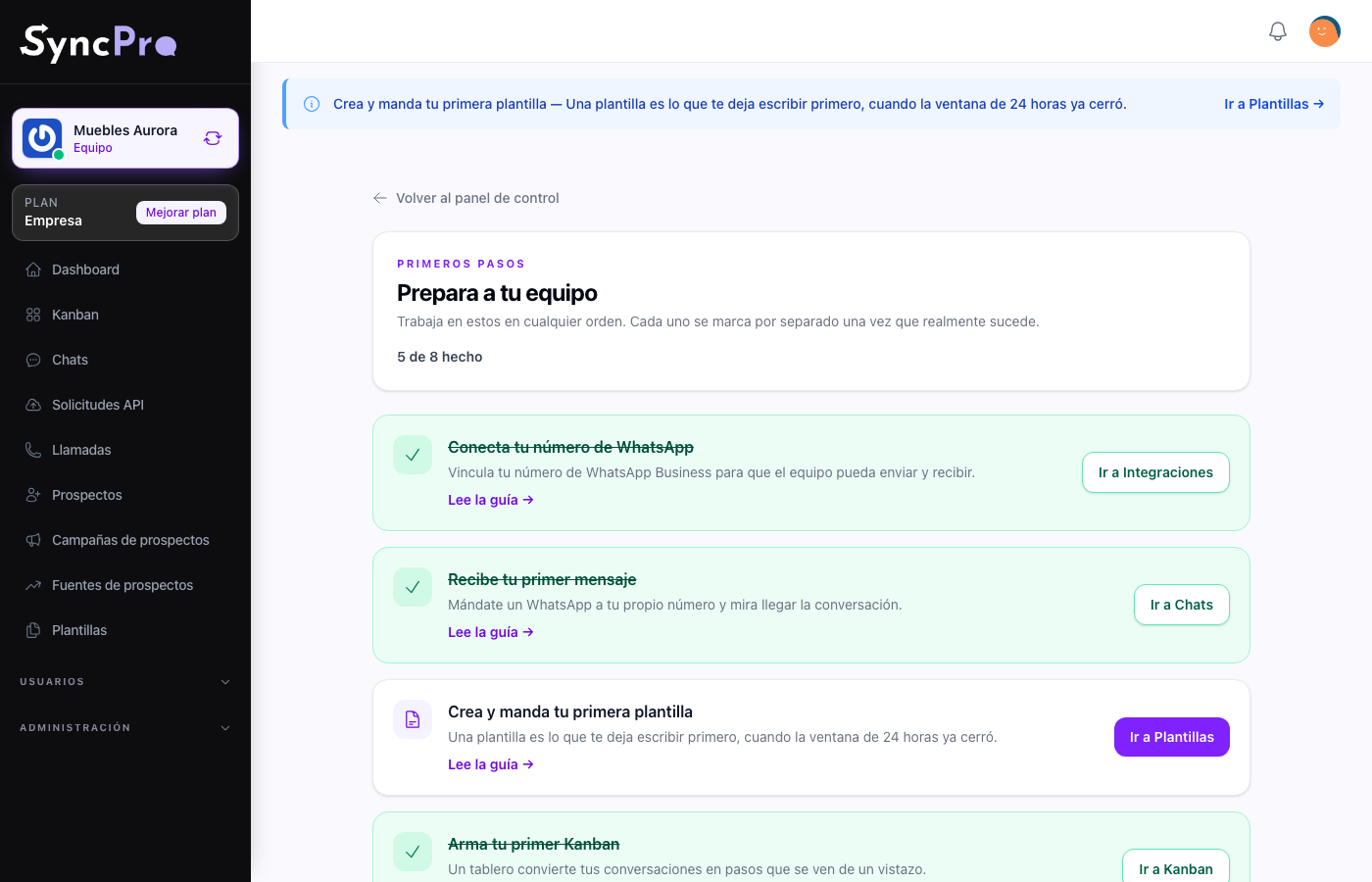
Where the list lives
- On the dashboard, the First steps block, titled Get your team ready, lists every step with how many are done. Each step is a link to the screen where you do it.
- See all steps opens the same list with a line about each step, a Read the guide link and a button that takes you to the right screen.
- At the top of the team's screens, a strip offers only the next step left to do, with its button.
Each step ticks on its own when it actually happens: nothing is marked by hand, and nothing can be. The list belongs to the team, not to the person, so somebody who joins a team that is already set up has nothing pending.
You can do the steps in any order. The list shows them in the order that wastes least time.
1. Connect your WhatsApp number
There is nothing to switch on first: the screen is already waiting for you in Settings → Integrations, in the WhatsApp Configuration section. You need Edit Settings in your role to see it; the person who created the team has it from the start.
It ticks when the team has a number linked and confirmed.
Full detail: The WhatsApp module.
This is the only step that genuinely blocks the rest. Until the number is connected, there is nothing to receive and nothing to answer.
2. Receive your first message
Send a WhatsApp to your own number from another phone and watch it land in Chats. This is the step that proves the connection rather than assuming it.
It ticks when the team has received its first message from a contact.
Full detail: Your first message.
3. Create and send your first template
WhatsApp only lets you write freely to someone who wrote first, and only for 24 hours. A template is what lets you start a conversation after that. If your Business account already has approved templates, import them instead of writing one.
It ticks when the team sends its first template message. Creating or importing a template is not enough on its own.
Full detail: Message templates.
4. Build your first Kanban
A board turns the inbox into steps you can see: who is new, who was quoted, who is closing. Create it from Kanban and add the columns your process actually has.
It ticks as soon as the team has a board.
Full detail: Funnels and Kanban boards.
5. Invite your team
Add the people who will answer from Members, and set the Default responsible users so a conversation from an unknown number always has an owner.
It ticks when a second person is a member of the team. An invitation nobody has accepted yet does not count.
Full detail: Set up your team.
The steps of the other modules
If your team has Callpicker, ChatGPT or Odoo on, each one adds its own step after the five above. These steps do not wait for your number: they are in the list as soon as the module is on.
| Step | It ticks when |
|---|---|
| Receive your first call | The team has its first call from Callpicker. |
| Connect ChatGPT | The OpenAI key and model are saved. |
| Connect Odoo | The Odoo URL, database, email and password are saved. |
A module that is off shows no step at all, so the list only ever asks for what your team actually has.
Before the number is linked
Steps 2 to 5 follow your number: while no number is linked, they are not in the list. Connect your WhatsApp number is then the only step, together with the steps of any other module your team has on. The rest appear once the number is linked. See Turning modules on and off.
When it ends
When every step that applies to your team is done, the first steps disappear on their own: the strip at the top goes, the block on the dashboard goes, and the dashboard is just the dashboard again. If you still have the page of all the steps saved somewhere, opening it takes you back to the dashboard. Nothing to dismiss and nothing to tick.