
The WhatsApp module
Link the WhatsApp Business number through the guided flow, where Sync Pro subscribes the application for you, or paste the credentials and set the webhook by hand in the manual case.
This is the module the rest of Sync Pro leans on. It has no switch and nothing to ask for: every team can link its number, and linking it is what turns WhatsApp on. See Turning modules on and off.
The team counts as connected only when three values are stored: the WABA id, the token and the number id. Until all three are filled, Sync Pro treats WhatsApp as off: there are no Chats and no Kanban in the menu, and messages sent to the number do not arrive.
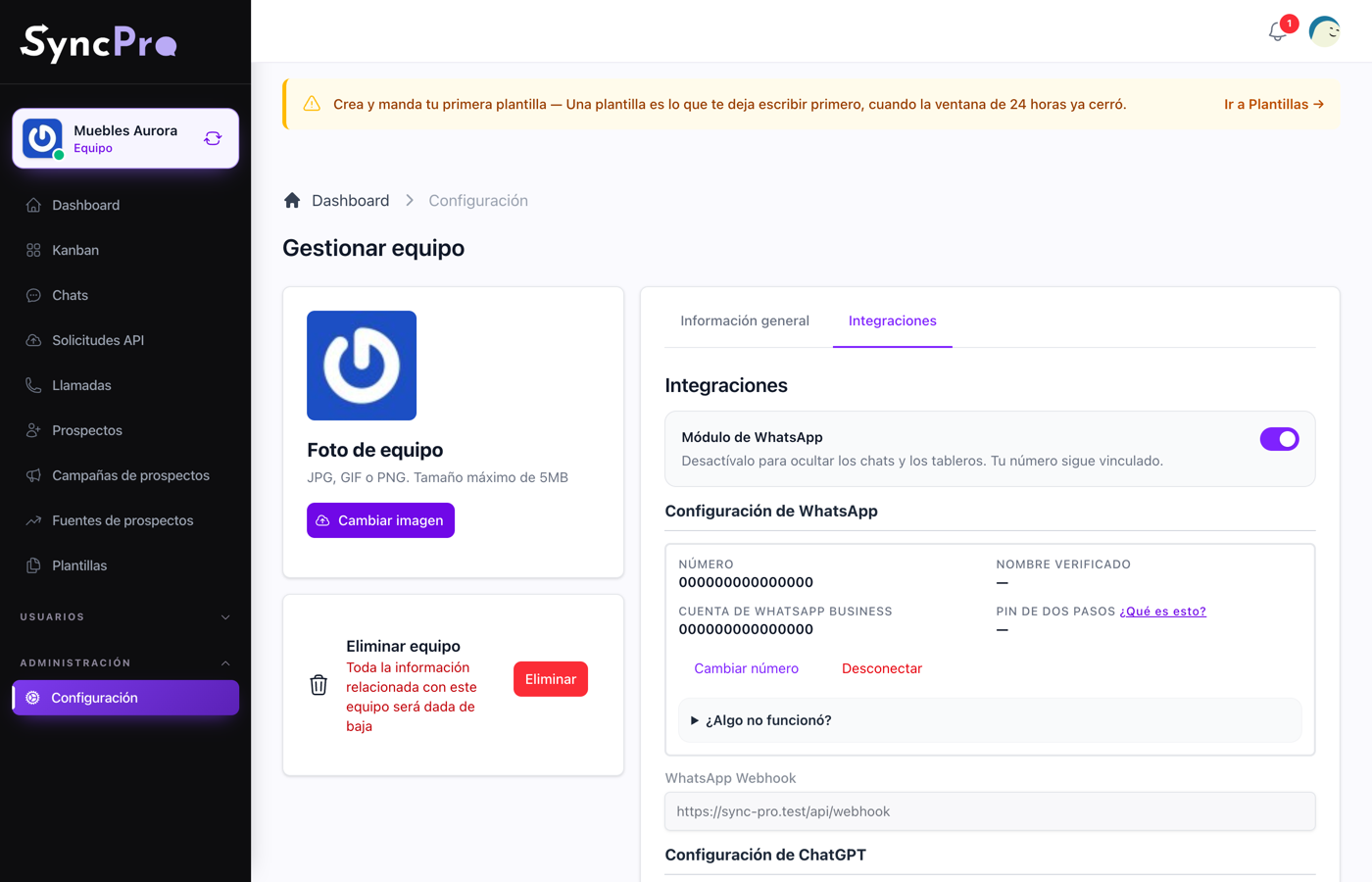
Everything here is under Settings → Integrations, in the WhatsApp Configuration section. Every member can open Settings, but only people whose role has the Edit Settings permission see this section. Without it, ask somebody who has it to link the number. See Roles and permissions.
What to have ready before you start
Most of what goes wrong is one of these not being true yet:
- Being an administrator of your business Facebook portfolio. If somebody else manages it, ask them to do this step with you.
- The phone number you want to send from, with access to receive its verification code.
- If the number is new to WhatsApp Business, it must not be active in the WhatsApp Business app. A number lives in one place at a time.
The guided way: Embedded Signup
This is the normal path and the one nearly everybody takes. It takes about three minutes, most of it inside Facebook's own window. How does it work?, next to the button, opens a short summary of these same steps.
- Press Link WhatsApp. A Facebook window opens.
- Sign in with the Facebook account that manages your business.
- Choose your business portfolio, or create one if you do not have it yet.
- Choose or create the WhatsApp Business account the number will belong to.
- Enter your phone number and confirm the code Facebook sends you.
- Accept. The window closes on its own and you come back to Sync Pro.
- If the account has a single number, Sync Pro confirms it for you and shows Number ready. If it has more than one, the section says Your account is linked. Now choose the number you want to send from.: choose it in Number and press Confirm.
You never touch a webhook on this path. Sync Pro subscribes the application for you, and there is nothing to copy anywhere.
If the Facebook window is closed before finishing, nothing is linked and Sync Pro says so. Press the button again. If Sync Pro shows WhatsApp could not be linked, the link did not finish: try again, and check that you are an administrator of the business portfolio. For the rest of what can go wrong, see If something went wrong connecting WhatsApp.
A number can be linked to one team only. If the one you choose is already linked to another team, Sync Pro shows This number is already linked to another team and links nothing: disconnect it from the other team first, or choose a different number.
Once it is connected
Once a number is confirmed, the section shows the connection instead of the button:
| Field | What it shows |
|---|---|
| Number | The number you send from. |
| Verified name | The business name WhatsApp shows for that number. |
| WhatsApp Business account | The id of the WhatsApp Business account the number belongs to. |
| Two-step PIN | The number's PIN. See Write down the PIN. |
Under it are two buttons:
- Change number opens the Facebook window again and runs the whole guided flow. Sync Pro saves the new account's access and generates a new PIN. When the account you choose has a single number, it is confirmed for you. When it has more than one, the section keeps showing the number you had and offers no list to choose from: to pick another number, press Disconnect and link again.
- Disconnect removes the team's WhatsApp credentials and the PIN from Sync Pro at once, without asking for confirmation. See What Sync Pro can and cannot see.
Write down the PIN
While linking, Sync Pro generates a two-step verification PIN of six digits and registers the number with it. The PIN appears in Two-step PIN; What is this?, next to it, explains it.
WhatsApp asks for that PIN whenever the number is registered again, here or on any other platform. Sync Pro invented it for you so you did not have to, and shows it so you can keep it. It stays on the connection screen while the number is connected, but Disconnect erases it and nobody can read it back to you afterwards. Write it down: you will need it the day you move the number elsewhere.
Two cases where the PIN on screen is not your number's PIN:
- The number was already working on WhatsApp's cloud — for example, you had linked it before, here or with another provider. Sync Pro does not register it again, so the PIN shown, and the new one Change number generates, are not applied. The number keeps the PIN it already had.
- The number was connected with token access. Sync Pro generates no PIN, and Two-step PIN shows —.
The manual way: token access
Some numbers cannot go through the guided flow — typically the ones owned by the same business that owns the Meta app. For those, the Token access module is switched on for the team, and the section gains a second block where you paste the credentials from your Business Manager:
| Field | Where it comes from |
|---|---|
| WhatsApp Token | The access token of your Meta app. |
| META WABA ID | The WhatsApp Business Account id. |
| WhatsApp Number ID | The id of the phone number to send from. |
Press Save credentials. Sync Pro shows WhatsApp connected, and from that point the team is connected exactly as if it had gone through the guided flow. The same rule applies: a number already linked to another team is refused.
Treat the token as a password. Sync Pro never shows it again: the fields empty once they are saved, and the connection shows the number id in Number and the account, never the token. Verified name shows —. To replace the credentials, paste all three again and press Save credentials.
The webhook — only for the manual case
The section always shows a read-only WhatsApp Webhook field with an address. That is the address where Meta delivers what happens on the number.
On the guided path you do nothing with it. Sync Pro subscribes the application itself.
If, and only if, your team connects with Token access, copy that address into your Meta app's webhook configuration.
Checking it worked
Send a WhatsApp message to the connected number from a phone that is not in the team. Within seconds it should appear in Chats as a new lead. If it does not:
- The number was linked but never confirmed, so there is no number id: the section still asks you to choose a number.
- The token was revoked in Business Manager.
- With Token access only: the webhook is not configured in your Meta app, or points somewhere else.
Your first message walks through this check step by step.
Your number, your accounts, your responsibility
- One number per subscription. Each Sync Pro subscription connects up to one WhatsApp number. To manage another number, it needs a subscription of its own, and the limits of the two are not added up or shared.
- The accounts are yours. Your Meta Business portfolio, your WhatsApp Business account and your number belong to you, and keeping them active, with their permissions and requirements, is in your hands.
- What Meta charges is yours. Meta and WhatsApp charge you directly for conversations, templates and numbers. It is not part of your Sync Pro plan.
- How you use WhatsApp is your responsibility. The messages you send, who you send them to, the consent of your contacts and keeping to Meta's policies are up to you. A block or a restriction Meta applies because of how a number is used is not something Sync Pro can undo.
- Meta decides approvals. Verifying your business, approving your number or your templates is decided by Meta, not by Sync Pro.
- You can connect it yourself. This guide is everything the connection needs. If you would rather be accompanied, WebLabor's Initial Setup is a service contracted separately, and it cannot guarantee what Meta decides.
What comes next
Chats and conversations — how the inbox works day to day.