
Chats and conversations
The inbox: the list of conversations and its filters, who a conversation belongs to, what you can send and schedule, what a contact can send you, the Media panel, the contact's details, internal notes, Kanban cards, the calls in the conversation, the 24-hour window and the monthly contacts limit.
Chats is where the day happens. It appears in the menu once your team's WhatsApp number is linked. It opens on the most recent conversation you are responsible for, and falls back to the team's most recent one when you have none. While no message has arrived yet, it says No message has arrived yet and points you to the first steps.
The screen has the list of conversations on the left and the conversation in the middle. The contact's details stay hidden until you open them with the Contact details icon at the top of the conversation.
Whose conversation is this
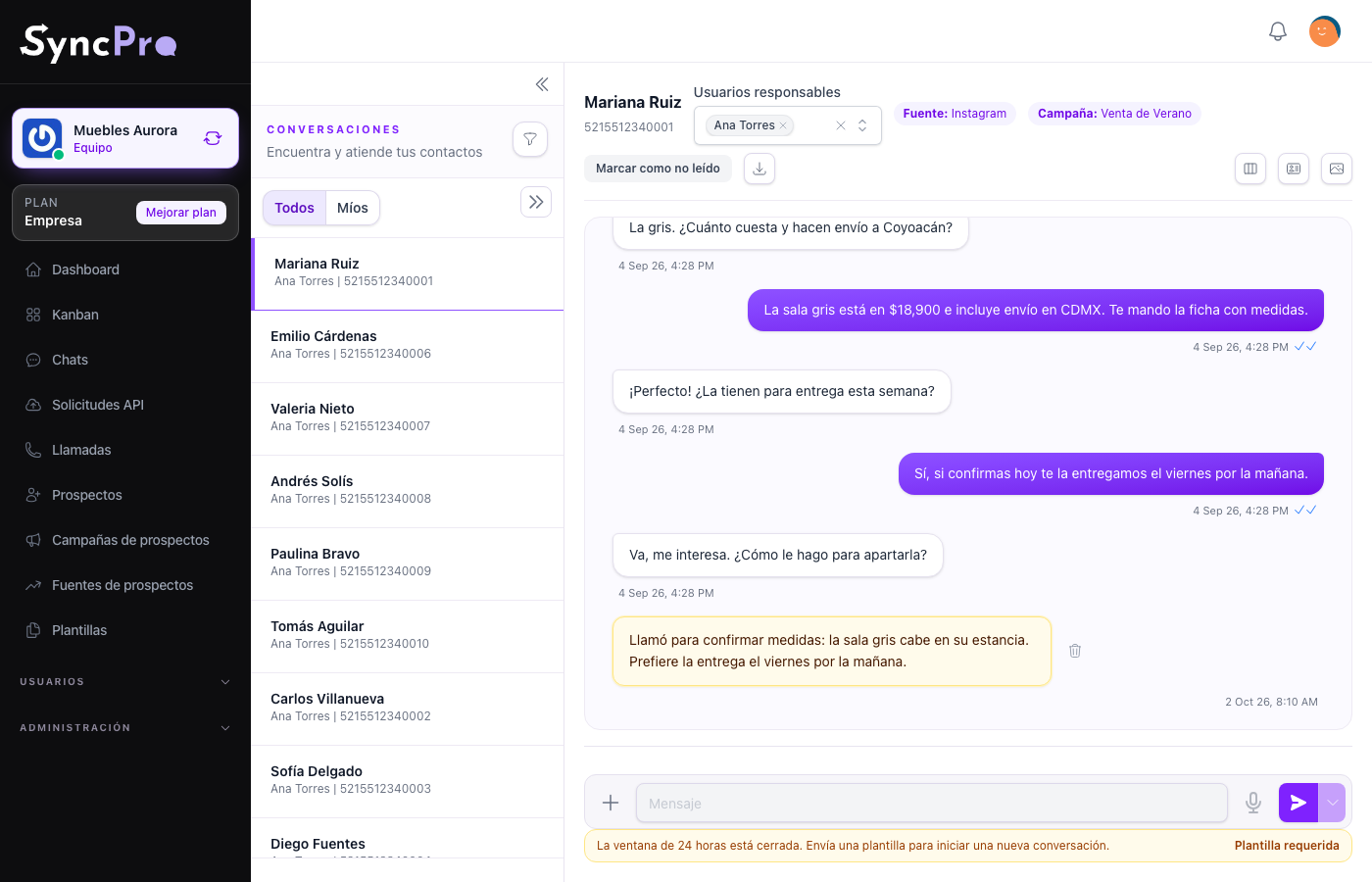
Every conversation has one or more responsible users. They are in the Responsible users selector at the top of the conversation, and you change them right there: add or take out people of your team. A conversation always keeps at least one. Whoever you add gets a notice that the contact was assigned to them, unless it is you.
A contact that writes to you for the first time gets its responsible users from the Default responsible users in the team settings, the way the team set them up. Contacts brought in with Import From Lead Sales get nobody; see Bring your contacts, and take them with you.
The first responsible user is the one shown in the list of conversations and as Assigned to in Contact details. A conversation with nobody responsible shows Unassigned.
The list of conversations
The list is ordered by what happened last, ten conversations a page. Each one shows the contact's name, its first responsible user and its WhatsApp number. The arrows above the list take you to the previous and the next conversation without going back to it.
The green number on a conversation counts the messages you have not read yet. It only appears on conversations you are responsible for, and it clears when you open the conversation, not when you answer it.
Mark as read and Mark as unread, at the top of the conversation, work on that same count, so they only do something on conversations you are responsible for. Marking unread is how you leave something for later without losing it.
Mine and All
What the list shows depends on your role:
- The Administrator role — the team owner's role — sees a switch above the list: Mine shows the conversations you are responsible for, All shows everything the team is handling.
- Every other role sees only the conversations it is responsible for. There is no switch.
Filtering the list
The funnel icon above the list, Filter conversations, opens the filters:
- Search chats looks in the contact's name, their business name and their WhatsApp number, so part of any of them is enough. The list narrows as you type, starting again from the first page each time. When nothing matches, it says No conversations match your search. Clear the box to get the whole list back.
- Kanban keeps only the contacts with a card on that board. All puts every conversation back.
- Column appears once you choose a board, and keeps only the contacts sitting in that column.
The filters work together with Mine and All: the search only looks inside what the rest already lets through. If someone you expect is not found, check those first. Your own work in one column of one board is usually the list to start the day with.
There is no filter by responsible user.
Sending
The message box sends text: Enter sends, Shift+Enter starts a new line. The + button next to it has the other options:
| What | How it behaves |
|---|---|
| Document | A PDF, Word, Excel, PowerPoint or text file (pdf, doc, docx, xls, xlsx, ppt, pptx, txt) of up to 10 MB. You can add a text to it before sending. |
| Photos | A JPG or PNG image of up to 10 MB. You can add a caption before sending. |
| Template | An approved template that applies to this contact. It is the only thing you can send outside the window. |
| Internal note | A note for the team. It never goes to WhatsApp. See Internal notes. |
Whatever you had typed in the message box becomes the caption of the photo or the text of the document, and you can still change it in Send photo or Send document.
The microphone, Record audio, records a voice note in the browser. It needs microphone permission and an HTTPS connection; without them the browser cannot record, which is a browser restriction, not a Sync Pro one. Stop it, listen to it, and send it with Send recording, or throw it away with Cancel recording.
Every file you send is kept in the contact's folder, inside the team's Leads folder, and uses the team's space. When the team has run out of space, a photo, a document or an audio is refused before it goes out, and the notice says why. See Your team's files and space.
What a contact can send you
Besides text, the conversation shows what the contact sends: photos and videos open large with a click, documents have a download button, and voice notes play in the conversation itself. A shared location opens in maps, and a shared contact opens its details with View contact.
A file that could not be downloaded says so in place of the file.
The ticks under a message
Every message you send carries a mark next to its time that says how far it got.
| What you see | What it means |
|---|---|
| A clock | Written down, not yet confirmed by WhatsApp. |
| One grey tick | WhatsApp accepted it. |
| Two grey ticks | It reached the contact's phone. |
| Two blue ticks | The contact opened it. |
| A red mark | The send failed. Open the panel for the reason. |
Two things never carry a tick, on purpose. A message you received carries none: the date stored on it is when it reached us, not an acknowledgement from the contact, and a tick there would be a claim nobody made. An internal note carries none either, because it never leaves for WhatsApp.
Messages sent before 30 July 2026 show only the first tick, whatever else is stored on them. Until that date a single confirmation was written onto every message of a contact, so their delivery and reading times cannot be trusted. The panel still shows what is stored; the ticks simply do not repeat it.
The ticks of a conversation you have open move on their own as WhatsApp reports each step. If one of those reports gets lost on the way, the conversation catches up by itself within a few seconds; there is no need to reload the page.
The information panel
Click the indicator to see who sent the message, what WhatsApp reported and the times it was sent, delivered and read. On a message you received, and on a note, the time itself opens the same panel. It closes with a click outside or with Escape, and it can be reached and opened with the keyboard.
The 24-hour window
WhatsApp only lets a business write freely to someone who wrote first, and only for 24 hours after their last message. After that the box is disabled and a notice says The 24-hour window is closed. Send a template to start a new conversation., marked Template required. Text, photos, documents and audio will not go out; the + button still offers Template.
To reopen the conversation you send an approved template. Once the contact replies, the window opens again and you can write normally. See Message templates.
When the contact's number is not on WhatsApp, the conversation says User is not on WhatsApp instead.
When a message shows an error
A red mark next to the time means WhatsApp refused the send. Click it and the panel gives the reason. The three that actually happen:
| What it usually is | What to do |
|---|---|
| The 24-hour window closed | Send an approved template instead. The window reopens when they reply. |
| The number is not on WhatsApp | Check the number on the contact, with its country code and no spaces. |
| The connection dropped | Look at the settings: if the number shows as disconnected, link it again. |
The message is not sent again on its own. Fix the cause and send it once more.
The monthly contacts limit
Your plan can limit how many contacts your team serves each month. A contact served is each lead your team sends at least one message to through Sync Pro during the monthly period. The same lead counts once in that period, however many messages you send them; messages your leads send you do not count, and the limit resets at the start of each new monthly period.
The count starts again on the first day of each month at midnight UTC, so depending on your timezone it can restart a few hours before or after your own midnight. You can follow it on the dashboard in the Contacts Served Per Month card. See Your dashboard.
When your team reaches the limit:
- Contacts you already served this month — you keep writing to them as usual.
- New contacts — their messages keep arriving, but you cannot write to them. A notice under the message box says Your team has reached its limit of contacts served this month. If you can manage the team's plan, it adds To write to new contacts, change your plan. and a See plans link.
- Sending from the conversation — a text, a photo, a document, an audio or a template to a new contact is refused, and nothing is added to the conversation.
- Messages that go out on their own — a scheduled message or template, a template sent to a funnel column, or a ChatGPT reply — are checked at the moment they go out. To a new contact they fail with the red mark, and the panel gives the same reason.
If your team has no active plan, it cannot write to any new contact.
You can still open and read everything the team already has. Reaching the limit never buys or charges extra capacity on its own: it lasts until the next monthly period starts, you add contacts with an extra or you move to a higher plan.
From the Professional plan up you can add 1,000 contacts a month to the limit without changing plan. See More users, contacts or space without changing plan.
Media
Media, the icon at the top of the conversation, gathers the files of the conversation, so you do not scroll the history looking for one. It has three tabs — Images, Videos and Documents — and a Show filter that narrows them to Everyone, Sent by me or Sent by client, which is the fastest way to find the quote you sent last week.
Only files that were stored appear here. Anything that never finished downloading is not in the panel.
A file a contact sends while the team has run out of space is stored anyway, because WhatsApp deletes its own copy after a while. It appears here like any other, and in the conversation it carries the note Saved without space available: free up space in Media. Files that arrived before this rule and were not kept are marked Not saved: your team ran out of space, and cannot be recovered from Sync Pro.
The number beside the panel's name counts everything stored in the conversation, audio included, and it ignores the Show filter. The number on each tab counts what that filter lets through. The two are answering different questions, so they do not have to add up.
Audio has no tab of its own. A voice note is played in the conversation itself, where it was sent, and not from this panel.
The contact's details
The Contact details icon at the top of the conversation opens the panel on the right. It shows the contact's name and number, Assigned to, and, when they are filled in, the business, the Source and the Campaign. Below come the contact's Kanban cards and its Notes. The business, the source and the campaign also show at the top of the conversation.
The conversation does not open the contact's page in Leads. Everything it offers on the contact is this panel and Edit contact.
Correcting a contact's details
A wrong name or a missing email can be fixed without leaving the conversation. In Contact details, the pencil next to the contact's name opens Edit contact, with the current values already filled in:
- Change Name, Email, Business Name or Alternative Phone. Only the name is required, and an email, when you give one, has to be a valid address.
- Click Save.
The new values show at once in the panel, at the top of the conversation and in the list on the left.
The WhatsApp number, the source and the campaign are not editable here. Change them from the contact's record in Leads.
The pencil only appears for people whose role can update leads — Lead → Update in Roles and permissions.
Internal notes
Notes are for the team, and the contact never sees them. They hang off the contact, not off a single message, so what one person learned on a call is there for whoever picks the conversation up next.
To write one, open + under the conversation, choose Internal note, write it and click Save note. The note appears in the conversation at the moment you wrote it.
Notes, in Contact details, lists them, ten at a time. View more opens one whole in Note details, and Go to conversation takes you to it in the history.
A note is deleted from the bin next to it in the conversation, which asks first.
Closing the note window without saving — Cancel, the cross, Escape or a click outside it — throws away what you wrote, so the next note starts empty.
The Kanban cards of a contact
The Kanban icon at the top of the conversation opens the contact's cards. Each card shows its title, its board and its column, with three buttons:
- View in Kanban opens the board on that card.
- Edit changes the card's title, its board or its column. Click Save card.
- Remove takes the card off the board, after you confirm it.
Add new creates a card: give it a New card title, choose the Kanban and the Column, and click Add card. Close the window with Done.
From here a card cannot be created in, or moved to, a board's final column: the final column is not offered. Cards reach it from the board itself. See Funnels and Kanban boards.
Calls in the conversation
With the Callpicker module on, the contact's phone calls sit in the conversation next to their messages and notes, each at the moment it happened. You read one history instead of opening Calls to find out what was said by phone between two messages.
Each call shows:
- Incoming call or Outgoing call. Incoming calls sit on the contact's side and outgoing ones on yours, like messages.
- Its date and time.
- Duration, as the call was recorded. A short outgoing call that reached voicemail is recorded as zero, and shows as 0:00.
- View call, the button on the right, which opens the call's own page with its recording.
A new call appears in the conversation on its own, without reloading, if you have it open when the call finishes.
Calls only show to people whose role can see calls — Call → See in Roles and permissions. Everyone else sees the same conversation without them.
If the Callpicker module is turned off, the calls already recorded stay in the conversation, but View call cannot open them until the module is on again.
Scheduling a message
A text, a photo, a document or a recorded audio can be scheduled instead of sent now. The arrow next to the send button opens Schedule message: next to the message box, in Send photo and Send document, and next to Send recording.
- Choose Schedule message.
- Check the preview and pick the Date and time. It is your own timezone, and it has to be in the future.
- Click Schedule message.
You can only schedule while the 24-hour window is open and the contact's number is on WhatsApp, the same as sending now.
The message appears in the conversation as Scheduled for its date. Its information icon says who scheduled it and when, and Cancel scheduled message stops it, after you confirm, while it is still pending.
At the scheduled time it is checked again. It fails if the 24-hour window has closed by then, if the team has reached its monthly contacts limit, or if its file was deleted from Media before the date. A scheduled message that failed says Scheduled message failed rather than disappearing; open its panel with the information icon to read why. A failed one can no longer be cancelled, because nothing is left pending.