
Roles and permissions
Create a role, clone one, what the permissions screen actually shows, and two roles built end to end — a salesperson and a supervisor.
Every person in your team has a role, and the role decides what they can see and do. Roles belong to the team: one created here grants nothing in any other team its members belong to.
You reach them from Roles in the menu.
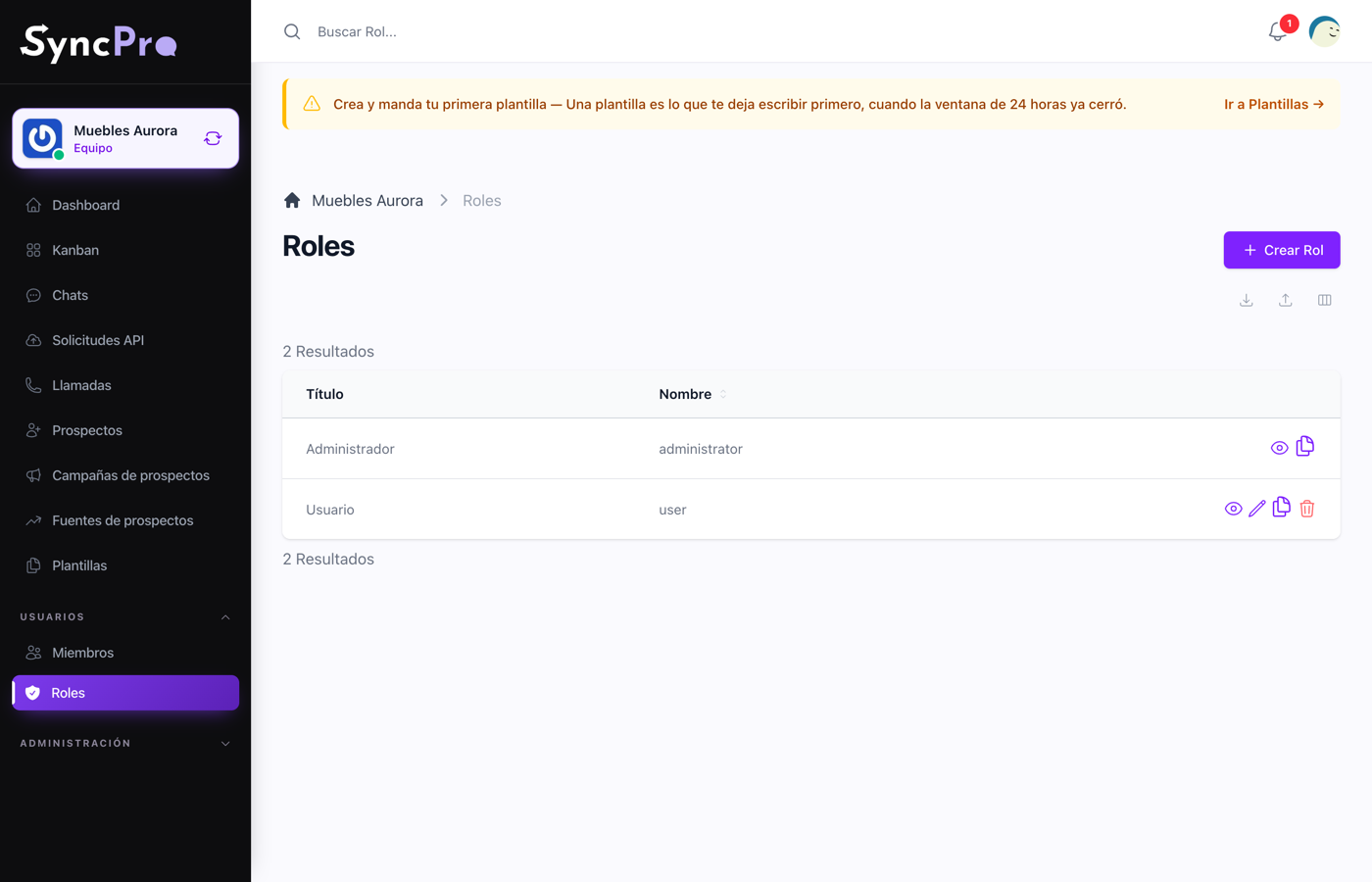
The two you already have
A new team is created with two:
- The owner's role, which can do everything. Whoever created the team has it, and it is not meant to be handed around.
- A default role, which is what somebody gets when they join and nobody chose for them. It is deliberately small: it only lets them see the team's members.
Creating one, then giving it permissions
This is two steps, and knowing that saves confusion:
- Create Role asks only for a Name. It has to be lower case with hyphens instead of spaces —
salesperson,supervisor. No permissions are asked for here. - Open the role you just created and press Edit. The permissions are on that screen.
Faster than starting from nothing: use Clone on a role that is close. It creates a copy with every permission of the original, named after it with -copia at the end, and opens it for editing, so you change two boxes instead of twenty.
What the permissions screen shows
Two blocks, one below the other.
Entity permissions is a table. Each row is a thing in Sync Pro, and the four columns are what somebody may do with it:
| Column | What it allows |
|---|---|
| Create | Add a new one. |
| See | Open and read them. Without this, the section is not in the menu at all. |
| Update | Change one that already exists. |
| Delete | Delete one. |
The rows are the things themselves. These are the ones worth setting:
| Row | What it covers |
|---|---|
| Members | The people in the team: seeing them, adding them, changing their role, removing them and their invitations. |
| Lead | The contact list under Leads. Update is also what shows the Edit contact button in a chat. Answering conversations in Chats does not depend on this row. |
| Template | The message templates. |
| Flow | The Kanban boards themselves: listing, creating, editing and deleting a board. |
| Flow Type Step | The columns and cards inside the boards. See below. |
| Lead Source and Lead Campaign | Where contacts came from, when the Advanced Leads module is on. |
| Call | The call records. The row only appears when the Callpicker module is on. |
| Api Request | The log of what arrived from WhatsApp and Callpicker. |
| Role | The roles themselves. Give this to almost nobody. |
Flow Type Step is the row that decides what someone can do with the columns and cards of a board:
- Create — add columns to a board with Add new column, add chats to a board with Add chat, and put a chat on a board from the chat itself.
- Update — rename and reorder columns, move cards between columns, change a card's title, and use Move cards to another Kanban.
- Delete — delete a column and take a card off a board.
The table also lists Kanban Column, Flow Type and Template Variable. The boxes of the Kanban Column row change nothing today: the columns follow Flow Type Step, as above. The other two are inner parts that the screens manage for you; leave them as they come unless somebody tells you otherwise.
Permissions, the second block, is a short list with a switch each:
- Edit Settings — changing the team's settings. Every member can open Settings, but without this switch the team's details are read-only and the Integrations and Import and export data tabs show nothing to them. That screen holds the WhatsApp connection, the Odoo password and every API key the team has, so give it to the people who administer, not to everybody. With MCP on, it also lets them manage the MCP tokens.
- Manage Plans — seeing and changing the team's plan, and its Add-ons.
- Manage Media — opening Media and Space: the team's files, including the Leads, Calls, Templates and Imports folders, and how much space they use. Files in a conversation stay visible from the conversation without it. See Your team's files and space.
- Manage Mcp Tokens — creating and revoking the tokens that connect an AI client, when the team has MCP. Someone with Edit Settings can do it too, without this switch. See Connect your AI client with MCP.
- View team tickets — seeing the support requests other members opened for this team, where your Sync Pro offers support requests. Everyone always sees their own.
Example: a salesperson who only answers
Somebody whose whole job is the inbox. They should be able to work every conversation and change nothing about how the team is set up.
In Entity permissions, tick:
- Members → See
- Lead → See, Update
- Template → See
- Flow → See
- Flow Type Step → Create, Update
In Permissions, leave every switch off.
The result: they answer, keep contact details current, put chats on boards, move cards and send approved templates, and cannot delete a board or a column, rewrite a template or reach the keys.
Example: a supervisor
Somebody who runs the day and reports on it, without administering the account.
Start from the salesperson above and add, in Entity permissions:
- Members → Create, Update
- Lead → Create, Delete
- Template → Create, Update
- Flow → Create, Update
- Flow Type Step → Delete
- Call and Api Request → See
In Permissions, still leave Edit Settings and Manage Plans off, unless this person really is the one who administers the account. A supervisor can run the work without holding the WhatsApp connection.
Changing somebody's role
From Members, press Edit on the person's row and choose another Role in Edit member. It takes effect on their next screen; nobody has to sign out. The owner of the team cannot be changed.
Changing a role never touches their work: the conversations they handled and the contacts assigned to them stay exactly where they are.