
Connect your AI client with MCP
Let Claude, ChatGPT or another AI client read your leads and Kanban boards and keep them up to date, with a token you can revoke at any time.
MCP lets an AI client you already use, such as Claude or ChatGPT, work with your team's leads and Kanban boards. You ask it in your own words — "which leads in Qualified have not written back this week?", "add this contact", "move Ana to Won" — and it looks things up and makes the change in Sync Pro for you.
The client connects with a token. Each token belongs to one team, acts with the permissions of the person who created it, and can be revoked on its own.
Before you start
- Have MCP on your team. The Company and Enterprise plans already include it: there is nothing to turn on. On any other plan, turn on the MCP add-on: open Add-ons from the menu, find MCP and turn it on. It is free. You need Manage Plans to see that screen; if MCP is not in the list, ask whoever administers your Sync Pro. See Sync Pro plans for what each plan includes.
- Have the permission to manage tokens. Your role needs, under Permissions, either Manage Mcp Tokens or Edit Settings. The team owner has both from the start.
- Have your own AI client. The connection does not include the account, subscription, credits or usage of Claude, ChatGPT or any other client: those are billed to you by its provider.
Create a token
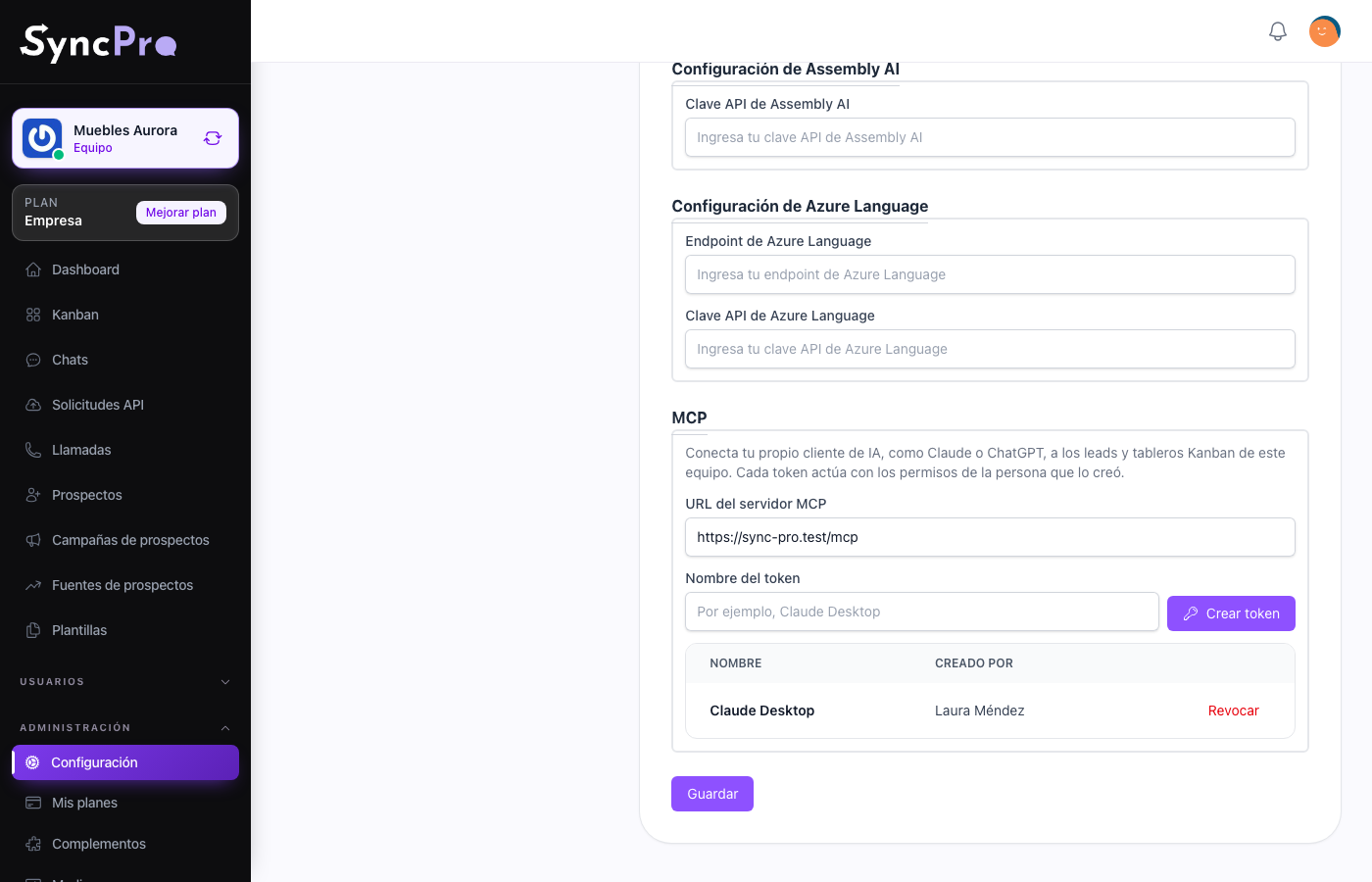
- Go to Settings → Integrations. When your team has MCP — included in Company and Enterprise, or with the add-on turned on in any other plan — and your role has Manage Mcp Tokens or Edit Settings, an MCP section appears there.
- Write a Token name that tells you where it will be used — for example, Claude Desktop — and press Create token.
- Copy the New token straight away and keep it somewhere safe. You will not be able to see it again. Press Done when you have it.
If you lose a token, you cannot recover it: create a new one and revoke the old.
Below the form, the section lists every token of the team with its Name and who it was Created by — Former member when that person's account was deleted. Anyone who can manage tokens sees them all and can revoke any of them.
Connect your client
Every client has a place to add an MCP server, usually called connectors, integrations or MCP servers. Give it two things:
| Field in your client | What to paste |
|---|---|
| Server URL | The MCP server URL shown at the top of the MCP section. |
| Token, API key or Authorization header | The token you copied. When the client asks for a header, write Bearer followed by the token. |
Once connected, the client shows the Sync Pro tools and you can start asking.
What the AI can do
It works inside the team the token belongs to, and only as far as the person who created the token is allowed to go. If that person cannot see templates, neither can the AI.
| It can | It cannot |
|---|---|
| Search and read your leads, with the Kanban column each one is in. | Send, answer or edit a WhatsApp message, or send a template. |
| Read a lead's WhatsApp conversation and, with Callpicker on, its calls with summary and transcript. | Create, rename or delete a board or a column. |
| Read your Kanban boards and message templates. | Delete a lead. |
| Create a lead and edit a lead's details. | See or change another team. |
| Move a lead's card to another column of the same board. | Do anything the token's creator is not allowed to do. |
When the AI is not allowed to do something, it gets a clear "Not allowed" answer telling it why, so it can tell you instead of guessing. A WhatsApp phone that another lead already has is refused the same way.
Each token can make up to 60 requests a minute. Past that, the client is asked to wait a moment and try again.
Seeing what the AI changed
Every change made through MCP appears in the lead's Activity History under the name of the person who created the token, with a Via MCP (AI) badge. Point at the badge to see which token made it. Moving a card also adds a Kanban Column entry showing where it came from and where it went.
Revoking a token
In Settings → Integrations → MCP, press Revoke next to the token and confirm. It stops working right away; the other tokens keep working.
A token also stops working when:
- the MCP add-on is turned off — every token of the team stops, and they work again when it is turned back on;
- the team leaves Company or Enterprise for a plan without MCP and the add-on is not on — the same happens, and turning the add-on on brings them back;
- the person who created it leaves the team.
A person who loses a permission takes it away from their tokens too, on the very next request.