
Bring your contacts, and take them with you
Upload your list as a spreadsheet with the exact column names it expects, what happens to repeated numbers and to the responsible users of the contacts you import, how to export what you have, and how to set who each contact belongs to.
If you already have a list of customers, upload it instead of typing it in. The whole list is one upload.
The file
A spreadsheet — Excel or CSV — with one contact per row and a first row of column names. The names have to be exactly these, in Spanish, in lower case and without accents:
| Column | Required | What goes in it |
|---|---|---|
nombre |
Yes | The person's name, as you want to see it in the conversation. |
correo |
Yes | Their email address. Leave the cell empty if you do not have one. |
telefono |
Yes | The WhatsApp number, with country code and no spaces or symbols. |
alternative_phone |
No | A second number, if you keep one. |
business_name |
No | The company they belong to. |
lead_campaign_id |
No | The number of the campaign they came from, if you use campaigns: the ID column of Lead Campaigns. |
The three required names are in Spanish and the optional ones are in English. That is how the importer reads them today, so copy them exactly rather than translating them.
The phone number is the part to get right. Write it with the country code and nothing else: 5215512345678, not +52 1 55 1234 5678 and not 55-1234-5678. The import does not check the numbers: each one is stored exactly as it is written. A number without its country code will not match WhatsApp, and a number with spaces or dashes may not reach the contact.
Uploading
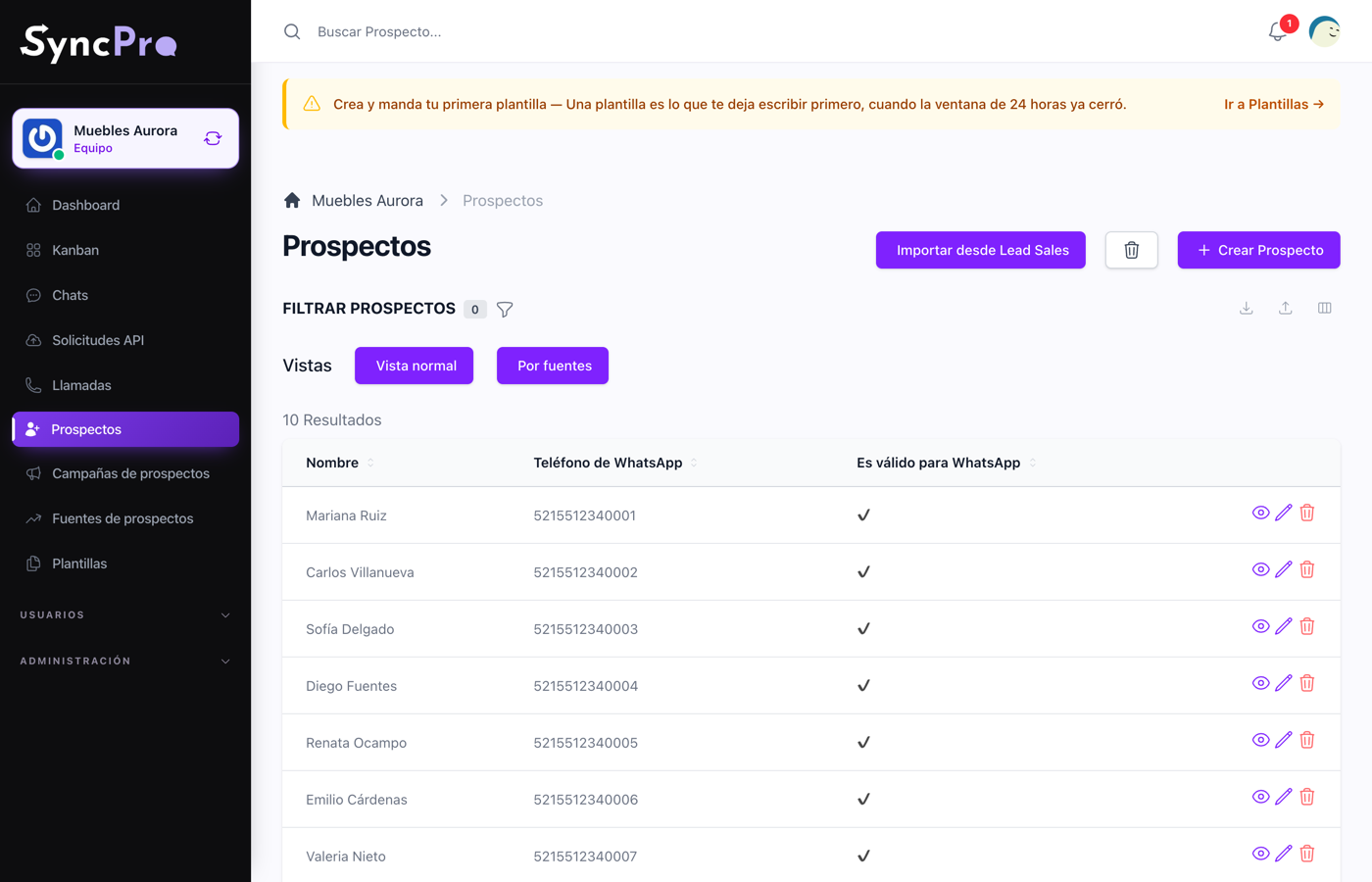
- Go to Leads and press Import From Lead Sales, the button at the top right. That is the one that takes this spreadsheet.
- In File, upload the spreadsheet:
.xlsx,.xlsor.csv. - Click Save changes.
The import runs right then, while the page waits: a long list takes a moment. When it finishes, the screen says Successfully imported. and you are back on the list, with the contacts in it.
If something in the file cannot be read — a missing column name, for example — nothing is imported and the screen shows the error. Fix the file and upload it again.
The spreadsheet passes through the team's Imports folder in Media while the import runs, and it is deleted when the import ends, so it does not stay in your team's space. See Your team's files and space.
Nobody is responsible for the imported contacts
The contacts you import with Import From Lead Sales come in without responsible users. The team's Default responsible users are not applied to them, and nobody is notified.
Until you give them someone:
- In Chats they show Unassigned, and they only appear under All, which only the Administrator role sees. They are in nobody's Mine.
- Nobody sees the green count of unread messages on them.
To give them a responsible, open the conversation and choose people in Responsible users, or, for many at once, use the Assigned To column described below. The source is not filled in from lead_campaign_id: if you use sources, set it on each contact's form.
Repeated numbers
Two rows with the same number, or a number your team already has, become two separate contacts. Nothing is merged and nothing is skipped for you: the import does not make the check that refuses a repeated number when you create a contact by hand.
That matters because a duplicate contact splits a conversation in two: some messages against one, some against the other. Before uploading, sort your spreadsheet by the telefono column and remove the repeats — it takes a minute and saves untangling it later.
Taking your data out
The lists — leads, calls, templates, requests — each have an Export button: the small icon at the top right of the list, next to the one for choosing columns. Rest the pointer on it and it says Export.
It gives you what that list is showing at that moment, so filter first and export after if you only want part of it.
Use it to keep a backup of your own, to work on the list in a spreadsheet, or before closing a team. See Creating a team and moving between teams.
Who each contact belongs to
The Assigned To column shows which person on your team is responsible for each contact. It is hidden until you turn it on: open the column chooser, next to Export, and tick Assigned To.
With it on, Export gives you each contact's responsible as their name and email, for example Ana López ([email protected]).
To change it for many contacts at once, fill that column in a spreadsheet and upload it with Import — the icon in the same group at the top right that says Import when you rest the pointer on it, not Import From Lead Sales. Write the email of someone in your team, on its own or in the same Name (email) form the export uses, so you can edit an exported file and upload it back.
- If the email belongs to someone in your team, the contact is assigned to them, and they take the previous person's place in the conversation. Anyone else who was already responsible for that conversation stays. The new person is not sent a notice about it.
- If the cell is empty, or the email is not someone in your team, a new contact is assigned the way it always is, and a contact you already had keeps the person it has.