
Message templates
Approved templates, importing what your WhatsApp account already has, and sending one to a person or to a whole column, now or scheduled.
A template is a message Meta approved in advance. It is the only thing you can send to someone whose 24-hour window has closed, which makes it the tool for reaching people rather than answering them.
Templates live under Templates in the workspace, once your WhatsApp number is linked.
Importing what your account already has
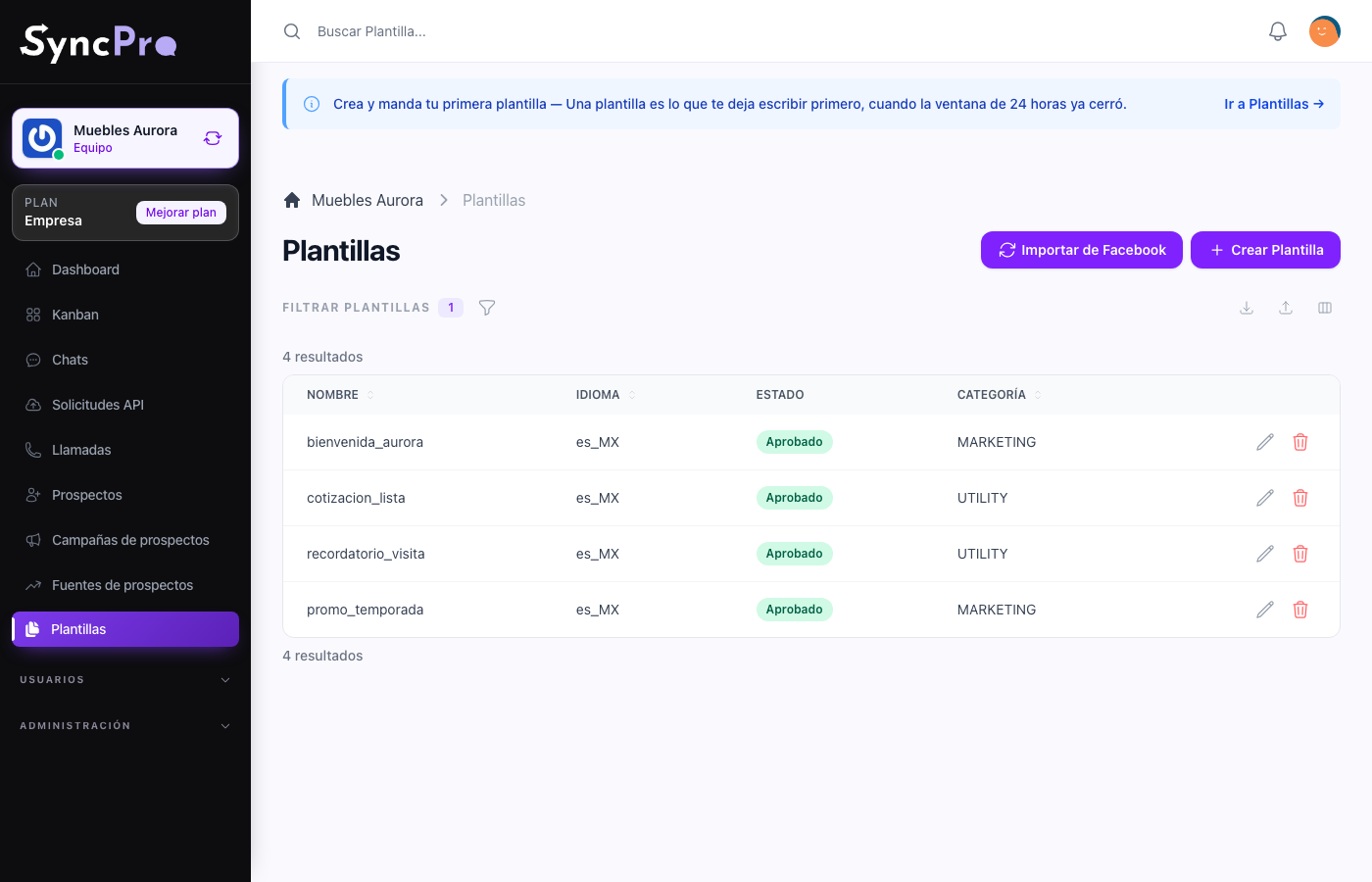
If your WhatsApp Business account already has templates, you do not retype them.
- In Templates, press Import from Facebook.
- The import starts in the background and the Review template import page opens. It follows the import while it runs: its status, when it started and finished, and how many templates were Created, Updated, Deleted and Skipped, plus the Warnings.
- Press Back to templates when it has finished.
The import saves as it goes: there is no step where you confirm it. It brings every template of the account, whatever its status in Meta — approved, pending, rejected, paused — with its text, its buttons, its variables and its status. A template you already had is updated rather than duplicated, and so is a draft of yours that was never sent to Meta but has the same name and language as one in your account.
It also works the other way: a template in Sync Pro that is linked to Meta, but no longer exists in your account, is deleted from Sync Pro.
Meta does not hand over the files of image, video or document headers. A newly imported template with one of those headers is set to ask for the file when sending, and any imported template with one of them and no file in Sync Pro is listed by the review page under Templates requiring attention, with Configure template to open it. See How to build a template.
Writing one
The builder has more in it than fits here: Meta's categories, a fixed or asked-for header, buttons, variables filled from the contact, the example Meta wants, where the template is offered, and the difference between saving and sending it for approval.
It has its own guide: How to build a template.
Two things to know before you start. A template is not usable until Meta approves it. And the list shows approved templates by default, so the draft you just saved is not missing — change the Status filter and it is there.
When Meta refuses one, Meta rejected my template covers what you can learn about the reason and what to change.
Deleting a template that is linked to Meta also deletes it from your WhatsApp account. If Meta does not accept the deletion, the template stays in Sync Pro and a message says why.
Sending one
Only approved templates can be sent, and of those, only the ones whose Workflow Integration applies: a template tied to a board, a column or a user is offered only there. There are two places to send from:
- To one person — in the conversation, press + (More options) next to the message box and choose Template. Pick the template, press Preview message, fill in what it asks for, and press Send template. This is what reopens a closed window.
- To a funnel column — on the board, open the column's menu and choose Send bulk message. The same template goes to every contact in the column, with Send now or Schedule for a date and time. See Funnels and Kanban boards.
Scheduling a template is only possible from the bulk send of a column: the conversation has no option to schedule a template for one person.
A bulk send only reaches the contacts of the column with a valid WhatsApp number; the window says how many they are before you send. Read the column before you send, not after.
When your team has run out of space, a template whose header always sends the same saved file is not sent, and Sync Pro says you have run out of space. See Your team's files and space.
When your team has reached its monthly contacts limit, a template sent to one person is not sent if you have not written to that person this month: a notice says the limit was reached. A template sent to a column only reaches the contacts you already wrote to this month; for everyone else it fails, and the conversation says why. A scheduled template is checked the same way when it goes out. See Chats and conversations.