
Funnels and Kanban boards
Boards where a contact moves from step to step, every one of them shared by the whole team, and the bulk moves and template sends that act on a whole column.
A funnel is a board: columns are the steps a contact goes through, and each card is a contact sitting in one of them. Sync Pro calls the screen Kanban, and it is where you see the shape of the work rather than one conversation at a time.
A team can have several boards — one per process, one per product line, one per campaign — and each keeps its own steps.
Opening a board
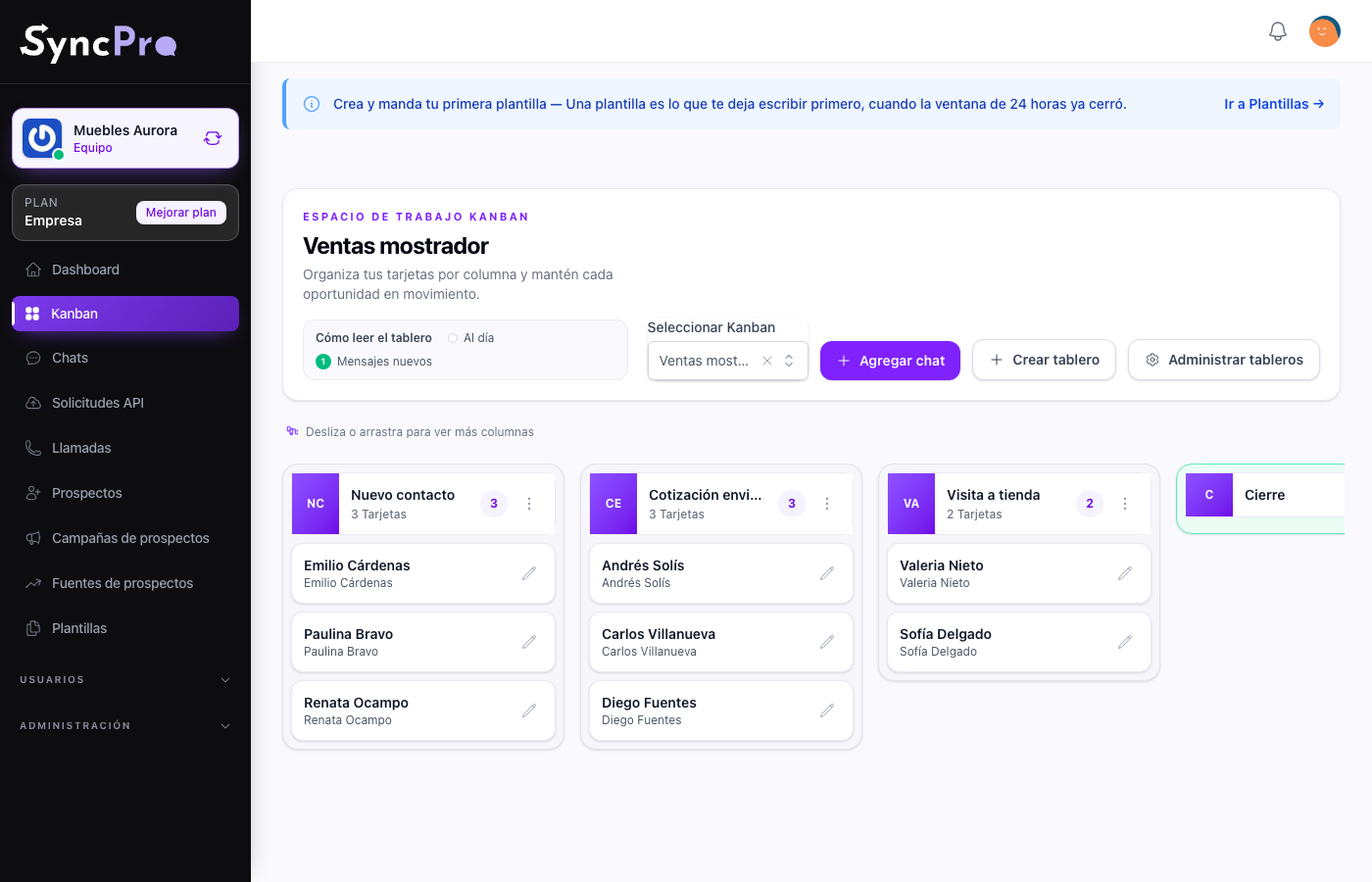
Kanban in the menu opens the team's first board. The menu shows it once the team has its WhatsApp number linked. When the team has several boards, Select Kanban at the top switches between them.
A team with no board yet lands on the empty board screen, and Create board is there, along with Manage boards for renaming and deleting. The same two sit in the header once a board is open, so you never have to hunt for where boards are made. A new board opens with no columns: add them before you bring in any contacts.
Steps
A step is a column. Add new column, at the right end of the board, asks for a Stage name and adds the column after the last one. Each column's More options menu (the three dots in its header) has Rename column.
To reorder, drag a column by its header and drop it on another column's header: the two swap places. That is how the board comes to match the way the team actually sells.
Each column header shows how many cards it holds. Delete column only appears in the menu of an empty column. Move its cards out first, then delete it.
The rightmost column is treated as the finished one, and the board draws it in green. You do not choose it anywhere — it is simply the last one in the order — so reordering the columns changes which column that is. Put the stage you consider "done" at the end. That column works differently from the others:
- Its cards are hidden, and so is its count. View cards in its menu shows them, and Hide cards folds them away again.
- New cards never start there, and a card cannot be put there from the conversation. To finish a card, drag it onto that column on the board, or use Move cards to another Kanban on the column it is in.
Cards
A card is a contact on this board, with a title you choose. The newest activity is at the top of each column: a card you have just added, moved or retitled goes first. A new message does not move a card. A green number on a card counts the messages that contact sent which you have not read yet; see Work your board day to day for exactly what it counts.
- Click a card to open that contact's conversation.
- Drag a card to another column of the same board to move it.
- The pencil on a card is Edit card title. It is the only thing you can change from the card itself.
- Add chat, in the board header, adds contacts in bulk. Search by name or WhatsApp number, tick the ones you want, adjust each Card title if you like (it starts as the contact's name), and press Add chats. The cards land in the first column that is not the last one, so a board needs at least two columns before you can use it.
A contact can have more than one card. It can sit on several boards at once, and nothing stops it having two cards on the same board: Add chat lists every contact, including those already on the board.
From the conversation
The conversation is usually where you place a contact on a board in the first place: you are talking to them, and it becomes clear which funnel they belong in. The Kanban button in the header of the chat screen opens a dialog with that contact's cards. From there:
- Add new creates a card: write the New card title, choose the Kanban and the Column, and press Add card. The last column of each board is not offered.
- Edit (the pencil) changes a card's title, board or column; save with Save card. Choosing another board moves the card there.
- Remove (the bin) takes the card off its board, after you confirm. It does not delete the contact or its conversation.
- View in Kanban (the eye) opens the board with that card highlighted, showing the last column's cards if that is where it is.
The Contact details panel of the chat also lists the contact's cards, to read only.
Who a board is for
Every board belongs to the whole team: there is no setting that limits one to certain people, and no screen to configure it. Every member can open Kanban and see all the boards. What each person can change — creating boards, adding columns and cards, moving them, deleting — depends on their role; a button their role does not allow is not shown or is refused. See Roles and permissions.
Who answers a contact is decided on the conversation, with Responsible users, not on the board, and the team's Default responsible users cover a contact nobody has claimed. See Set up your team.
Acting on a whole column
Two entries in a column's More options menu work on the whole column rather than a card, and both are worth understanding before you use them:
- Move cards to another Kanban moves every card in the column to the Destination Kanban and Destination column you choose, in one action. The destination can be another column of the same board or a column of another board, including its last column. The column itself stays where it is, empty.
- Send bulk message sends one approved template to every contact in the column with a valid WhatsApp number, now or at a date and time you choose. Only approved templates that apply to this column, this board or you, or that are not tied to anything, are offered. See Work your board day to day and Message templates.
The second one sends real WhatsApp messages to real people. Read the column first.