
Work your board day to day
Add contacts in bulk, read the unread badge as your to-do list, filter your conversations by board and column, move a whole column's cards, and message everyone in one step.
Building the board is one thing; working it every day is another. This is what the board actually does once it has contacts on it.
Adding contacts in bulk
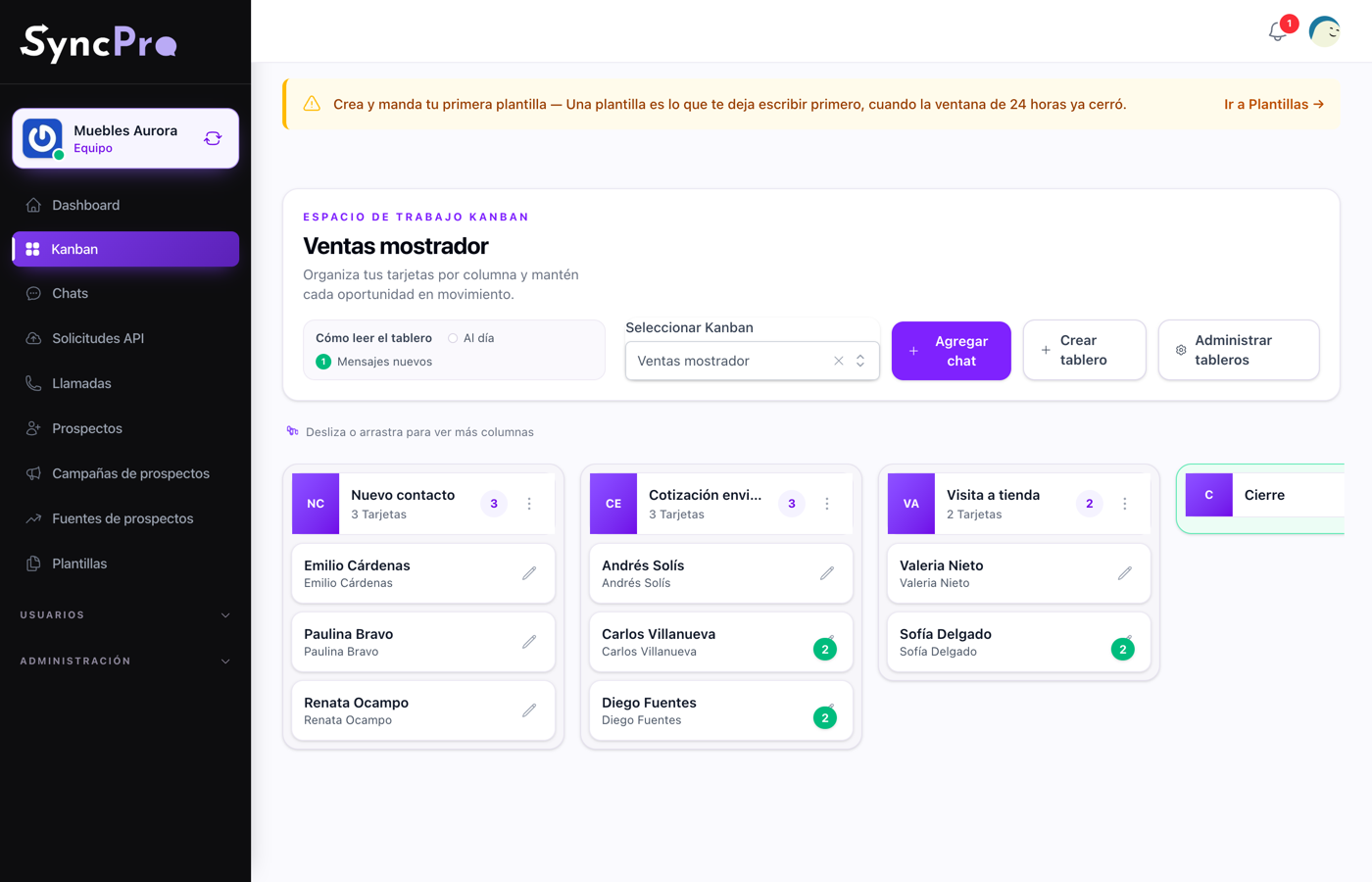
Add chat on the board opens a search over your contacts, by name or WhatsApp number. Tick as many as you need, give each card a title if the contact's name is not enough, and press Add chats. They land on the board as cards in one go, in the first column that is not the last one.
This is how a board gets populated after you have imported your contacts, and it is much faster than adding them one at a time from each conversation. The list shows contacts already on the board too, so check before you tick: picking one again gives it a second card.
The unread badge is your to-do list
Each card shows a green number when that contact has sent messages you have not read yet. It is personal: it only counts on contacts you are one of the responsible users of, and each person in the team sees their own number. On a contact you are not responsible for, you never see a badge.
Opening the conversation clears it, whether or not you answer. Mark as unread, in the conversation header, brings it back when you want to come back to that contact later.
That badge is the most useful thing on the board. It does not say "this is old" or "this is urgent" — it says somebody wrote and you have not looked yet.
Each column header shows how many cards the column holds, not how many messages are waiting. Inside a column, the card added, moved or retitled most recently is at the top; a new message does not move a card up, so look for the badges rather than at the order.
The same count is on the conversation list, so what the board tells you at a distance the inbox tells you up close.
Moving cards
Drag a card to another column. That is the whole of it, and everyone on the team sees it where you put it.
Moving a card does not do anything else. No message goes out, nobody is notified, nothing is assigned and nothing is scheduled. The board is a picture of where things stand, kept by the people who move the cards.
Filtering your conversations by board and column
In the conversation list, Filter conversations (the funnel button) opens three filters: Search chats, by name, business or phone; Kanban, to narrow to the contacts with a card on one board; and Column, which appears once a board is chosen, to narrow to one column inside it. That turns the inbox into "everyone waiting at the quote stage" instead of everything at once, which is how you work one stage at a time.
Which conversations the list covers depends on your role. Only the administrator role — the one whoever created the team has — gets All and Mine above the list: Mine shows only the conversations they are responsible for, All shows the whole team's. Everybody else always sees only the conversations they are responsible for, so the filters already give them their own work in that stage. There is no filter for another person's conversations.
Clicking a card on the board opens its conversation with that board and column already chosen in the filters.
Moving a whole column's cards
Move cards to another Kanban, in a column's More options menu, moves every card in the column at once. Choose the Destination Kanban and the Destination column and press Move cards. The destination can be another column of the same board or a column of a different board, the last column included.
The column itself does not move: it stays on its board, empty. Useful when a stage really belongs to a different process, or when you split one board into two and do not want to drag contacts across one by one.
Messaging everyone in a column
Send bulk message, in a column's More options menu, sends one approved template to every contact in it that has a valid WhatsApp number. The screen says how many contacts are in the column and how many of them will receive it.
- Select a template. Only approved templates that apply to this column, this board or you, or that are not tied to anything, are listed. A template is tied in its Workflow Integration card; see How to build a template.
- Preview message shows the template filled in for one contact of the column.
- Check the Template variables. They start with that contact's values, and whatever they hold when you send is what every contact receives: a variable showing one person's name sends that name to everybody. Every variable must have a value.
- If the template's header takes a file, choose the image, video or document. Images up to 10 MB; videos and documents up to 16 MB.
- Under When should it be sent?, choose Send now or Schedule. A schedule needs a Date and time in the future, in the time zone of your profile.
- Press Send to all, or Schedule messages.
This reaches real people on WhatsApp. Read the column before you send: check who is actually in it, and that the template says what you think it says. There is no undo once it has gone.
What the board does not have
Worth knowing so you do not go looking for it: a card has a title, a contact and a column, and that is all. There is no assignee on the card, no priority, no due date and no labels, and nothing reminds anybody that a card has been sitting somewhere for a while. If you want to work that way, see Using the board as a to-do list, which is about the convention rather than a feature.