
How to build a template
Categories, headers, buttons, variables, the example Meta asks for, where a template is offered, and the difference between saving and sending it for approval.
A template is a message Meta approved in advance. It is the only thing you can send to somebody whose 24-hour window has closed, which makes it the tool for reaching people rather than answering them.
Templates live under Templates. If your WhatsApp account already has approved ones, import them instead of writing them: see Message templates.
Start from one that already works
Before writing from scratch, look at whether you can clone one you already have. Open the template and press Clone Template: the editor opens with a copy of its text, its buttons and its variables, named "Copy of" plus the original name. Nothing is saved until you save it, and the copy starts as a draft, so it goes to Meta as a new template. A clone is far quicker than rebuilding and far less likely to be rejected.
The general information
The General Information card holds what identifies the template:
- Template name — must be unique in your team. From it Sync Pro builds the Facebook slug, the name Meta knows the template by. The slug is fixed when the template is first saved and does not change if you rename it later.
- Category — see below.
- Template language — the language Meta approves it in. Once the template is linked to Meta the language can no longer be changed: to use another language, create or import a separate template in that language.
- Description — an internal note about what the template is for. It is required, and it never reaches Meta or your customers.
The category Meta asks for
Every template declares what it is for, and Meta approves it against that:
| Category | What belongs in it |
|---|---|
| Marketing | Offers, news, invitations, anything that promotes. The strictest to get approved. |
| Utility | Something about an order, an appointment, an account: a confirmation, an update, a reminder. |
| Authentication | Codes and verification. Very narrow, and rarely what you want. |
Choosing wrong is the most common reason for a rejection. A promotion filed as utility gets refused; so does an order update written like an advertisement.
The header
The header is optional. In Header Type you pick No header, Text, Image, Video or Document.
- Text — a short line of up to 60 characters: letters, numbers, spaces and the signs . , ! ? -. It can carry a variable, written
{{1}}, filled for each contact. - Image, Video or Document — a file. Its behaviour selector decides what is sent:
- Use this image every time (or video, or document) — the saved file goes out on every send.
- Ask for an image when sending (or video, or document) — whoever sends the template chooses the file at that moment. Useful for a quote, a receipt or a photo of the product.
A header with a file always needs a file in the editor, even just to save the template: Meta wants an example of it to approve the template. With Ask for ... when sending, that file is only the example for the approval and for the preview; it is not what your customers receive.
| Header | Files accepted | Largest size |
|---|---|---|
| Image | JPG, JPEG, PNG | 10 MB |
| Video | MP4, 3GP | 16 MB |
| Document | PDF, DOC, DOCX, XLS, XLSX, PPT, PPTX, TXT | 16 MB |
The file is kept in the template's folder, inside the team's Templates folder, and uses the team's space. When the team has run out of space the file is refused with a notice and the template is not saved; free some space or buy more, and save again. See Your team's files and space.
The body, and its variables
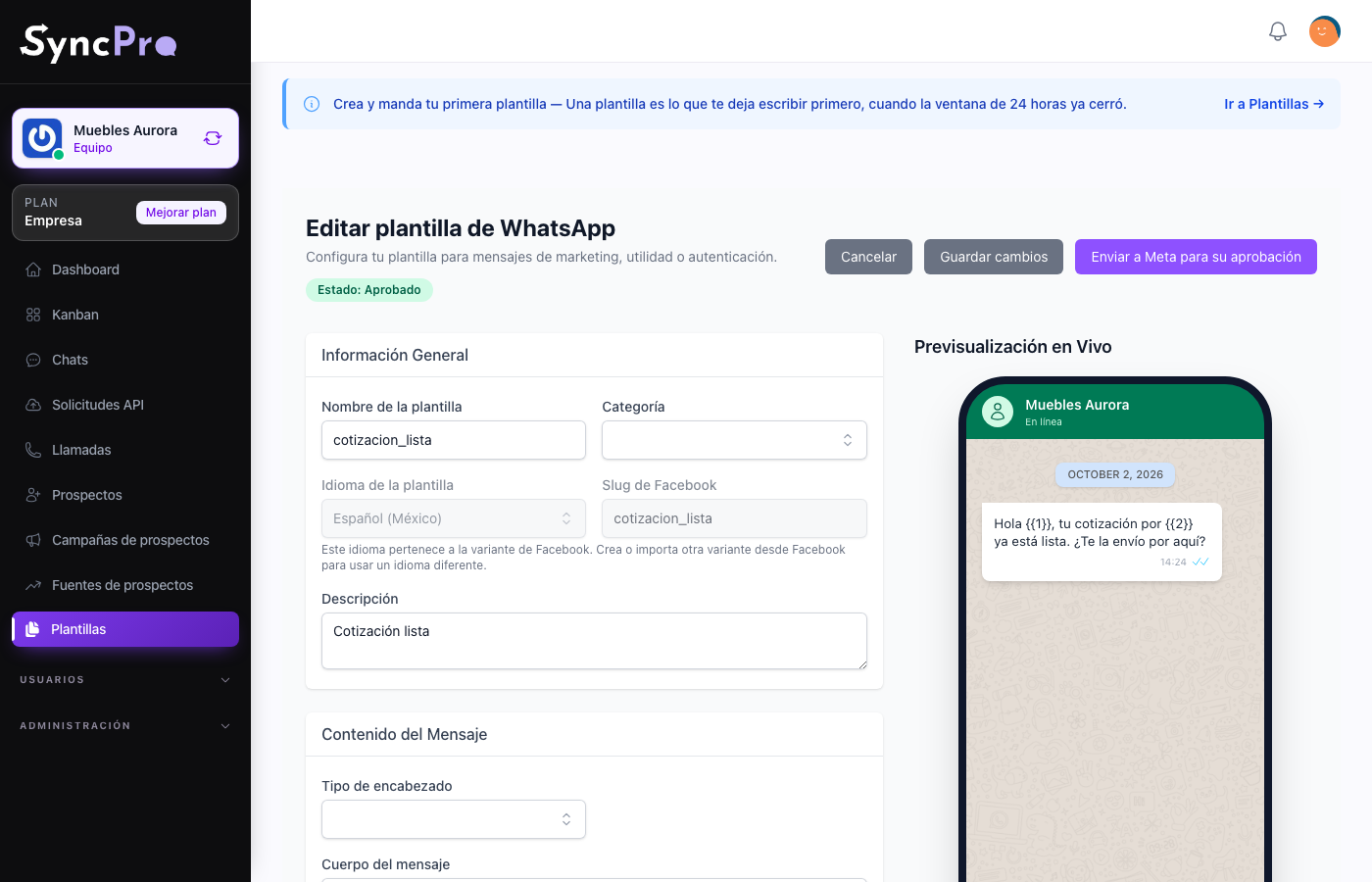
The Body Message is the message. A blank in it — a name, a date, an amount — is a variable, written as {{1}}, {{2}} and so on. The body cannot begin with a variable, and it cannot end with one either, not even when only punctuation follows it: write some real text after the last variable.
Sync Pro detects the variables of the body and of a text header on its own and lists them under Template Variables. Press Edit on each one, or Add Variable, and set its Type:
- Lead field — it is filled from a field of the contact: Lead name, Email, WhatsApp phone, Alternative phone or Business name. Every person receives their own name or their own phone without anybody typing it.
- Fixed text — it always sends the same text you write.
Meta asks for an Example for WhatsApp for every variable. That value travels to Meta for the approval and shows in the preview; your customers never see it. Put something realistic: an example that reads like a placeholder makes a rejection more likely.
Keep the body short and say plainly what the message is about. The Footer Text (Optional) is capped at 60 characters, with only letters, numbers, spaces and the signs . , ! ? -.
Buttons
Under Interactive Buttons, Add Button adds one. A template can carry up to ten. Each has a Type and a Label of up to 20 characters:
- Quick Reply — the person answers with one tap.
- Url — opens a link. The URL must start with http:// or https://, have a real domain such as example.com, and contain no spaces.
- Phone Number — calls the number you write.
Buttons are what turn a template from an announcement into something the person can act on.
Where the template is offered
The Workflow Integration card decides who sees the template when sending one. Leave it empty and the template is offered everywhere. Otherwise, pick a Trigger Type and then, in Select Item, which one:
- Flow — one Kanban board: the template is offered in the chats of contacts on that board and in the bulk send of its columns.
- Kanban column — one column: the template is offered in the chats of contacts with a card in that column and in that column's bulk send.
- User — one member of the team: only that person is offered the template.
These are settings of Sync Pro alone: changing them never sends anything to Meta. A template tied in an older version of Sync Pro to a funnel or to one of its stages keeps that tie, and the editor does not let you change it.
Saving against sending for approval
These are two different things and the difference matters:
- Save Template — on an existing template, Save Changes — keeps your work in Sync Pro. Nothing goes to Meta. A template that was never sent to Meta stays a draft and cannot be sent yet. A template already linked to Meta keeps its status: your changes wait in Sync Pro until you send it for approval.
- Send to Meta for approval saves and hands the template over. Its status becomes pending, and it becomes usable only if Meta approves it. If Meta does not accept the submission, an error at the top of the page says why and the template is not sent.
When you send a template that is already linked to Meta, what matters is whether you changed something Meta reviews: the category, the language, the body, a text header, a video or document header, the footer, the variable examples or the buttons. If you changed nothing at all, it says "No changes to submit". If you only changed things Meta does not see — the name, the description, the Workflow Integration, how a variable is filled, or the image of an image header — it saves them and tells you Meta was not updated.
A pending template can still be edited. While you have it open, the page checks with Meta every 20 seconds, and the arrow next to its status checks right away. You do not need the page open: the status also updates on its own, and every member of the team gets a notice in the bell when it changes. See Meta rejected my template.
Save early and often while you are writing. Send it to Meta when it says what you mean.
A saved draft does not appear in the list by default, because the list shows approved templates until you change the filter. It is not lost. See Meta rejected my template.
What Sync Pro checks when you save
Both buttons run the same checks before saving anything. They catch the mistakes that would earn an automatic rejection, or that Sync Pro cannot store:
- the name, description, category, language and body are filled in, and the name is not already used by another template of the team;
- every variable in the body is configured, with its value and its example, and a Lead field variable points to one of the available fields;
- the body neither begins nor ends with a variable;
- a text header is within 60 characters and the footer within 60, using only the allowed signs;
- a header with a file has its file, of an accepted type and size;
- every button has a label of up to 20 characters, and a Url button a valid address;
- the language did not change on a template already linked to Meta.
If something is missing, the field shows it, or a notice at the corner of the screen says what to fix.
Passing those checks does not guarantee approval — Meta decides — but it removes the rejections that are only a formatting mistake.