
Set up your team
The name, the people, the roles they get, and who a new conversation is assigned to when nobody claims it.
A team is ready to work when three things are settled: who is in it, what each of them is allowed to do, and who answers a conversation that arrives with no owner. All three live under Settings and Members in the workspace sidebar.
Who can change the settings
Every member of the team can open Settings. What they can do there depends on the Edit Settings permission of their role:
- With it, they change the team's details and picture, and they see the Integrations and Import and export data tabs, where the WhatsApp connection and the keys of every module live.
- Without it, General information is shown read-only, the team picture cannot be changed, Import and export data is not there, and Integrations shows none of its sections. The one exception is the MCP section, which appears for someone who has Manage Mcp Tokens when the team has MCP; see Connect your AI client with MCP.
Everyone, with or without it, finds in Settings the option to leave the team. See Creating a team and moving between teams.
The team's own details
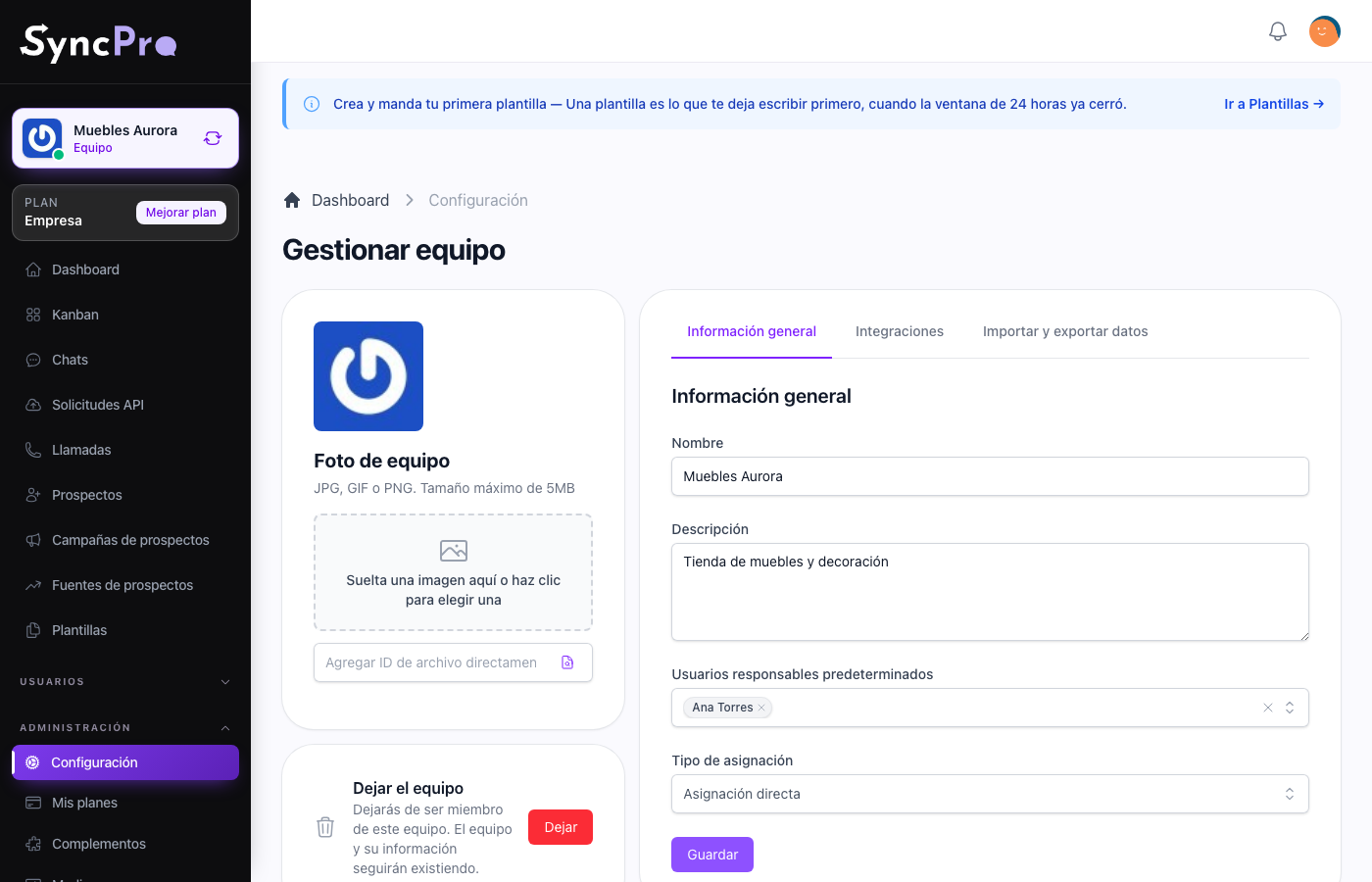
Settings → General information holds what identifies the team:
| Field | What it is for |
|---|---|
| Name | What the team is called, in the switcher and in the sidebar. |
| Description | A line for the people in it. Optional. |
| Default responsible users | The people a new lead is assigned to when nobody claimed it. It cannot be saved empty: choose at least one. |
| Assignment type | How new leads reach those people. Direct assignment is the only type for now. |
| How to assign | Appears when you choose two or more default responsible users, and has to be filled in. |
Press Save when you are done.
The last ones are the ones worth thinking about. A conversation that arrives from an unknown number has to belong to somebody, or it sits unanswered. Pick the people who actually watch the inbox.
Who gets a new lead
With two or more Default responsible users, How to assign gives you two choices:
- Assign to everyone — every new lead is assigned to all of them at once, and each of them sees it in their chats. The first person you chose is the one shown in the lead's Assigned To column.
- Take turns — each new lead goes to one of them, in the order you chose them. Nobody gets a second lead until everyone has had one, even when several leads arrive at the same moment.
The rest of the time there is nothing to choose:
- With one person in the list, every new lead goes to that person.
- A team that has never saved this screen has nobody in the list yet. Until somebody saves it, each new lead goes to a member of the team picked at random.
- If a lead already comes with somebody on your team as its responsible — for example from the Assigned To column of a spreadsheet uploaded with Import — it keeps that person, and it does not use up anyone's turn.
- A lead you create yourself in Leads skips all of this: the form asks for its Responsible users, starting with you, and you can pick one or several members of the team. The others you pick are told the lead is theirs.
- Leads brought in with Import From Lead Sales skip all of this too, and arrive with nobody responsible: the default responsible users are not applied to them and nobody is told. Give each one its Responsible users from its chat. See Bring your contacts, and take them with you.
The order you choose the people in matters for Take turns, so add them in the order you want the leads to go round. If you take somebody out of the list, the turns carry on with the next person without skipping anyone.
Assign to everyone comes selected unless your team already saved another option. If your team had two or more default responsible users before How to assign existed, new leads go to all of them until you choose Take turns and save.
Changing any of this only affects leads that arrive from then on. Leads you already have keep the people they were assigned to.
Members
Members lists who belongs to the team and the invitations still waiting. To add somebody:
- Press Create member.
- Write their Email and choose their Role.
- Press Save.
What happens next depends on whether that email already has a Sync Pro account:
- It has one. The person is added to the team straight away, with the role you chose, and is told so.
- It has none. Sync Pro emails them an invitation, and it shows under Invitations on the same screen and in the Invitations count on the dashboard. They become part of the team the first time they sign in with that email — for someone new, right after creating their account. No account is created for them.
Members are added by email. Adding someone by phone answers that phone invitations are not available yet.
Create member is greyed out when the team already has all the users its plan allows, and the screen says so. Invitations still waiting count as users. To make room, remove a member or a waiting invitation, move to a bigger plan, or add users; see More users, contacts or space without changing plan.
If somebody says the invitation never arrived, check the address you used, delete the waiting invitation and invite them again.
Changing or removing a member
Edit on a member's row opens Edit member, where you change their Role. The owner of the team cannot be edited or removed.
Delete removes a member and takes their access away at once. It does not delete the conversations they handled. Their leads are passed on, without notices:
- A lead they shared with other responsible people stays with those people.
- A lead that was only theirs goes to one of the team's Default responsible users, picked at random.
- If they were in the Default responsible users list, they are taken out of it. When they were the only one there, the first remaining member of the team takes their place.
Roles
Roles are the team's own. A role created here is a role inside this team, and it never grants anything in another team someone happens to belong to.
The person who created the team is its owner and can do everything in it. Everybody else gets what their role gives them. The permissions worth knowing, by their name on the Roles screen:
- Members — who sees the member list (See), adds people (Create), changes their role (Update) and removes them or their invitations (Delete).
- Edit Settings — who can change Settings, including every module's keys.
- Manage Plans — who sees the plan and can change it.
Give Edit Settings carefully: with it, a person can replace the WhatsApp connection, the Odoo password and the API keys of every module the team has on. See Roles and permissions.
What comes next
With the team set up, connect the channel: The WhatsApp module.