
Your dashboard
What every card on the home screen counts, your plan's usage, why it all starts at zero, who sent the templates you are charged for, and what the calls panel measures.
The dashboard is what you see when you open Sync Pro. It is a summary of your team, not of your own work, so everybody in the team sees the same numbers.
The cards at the top
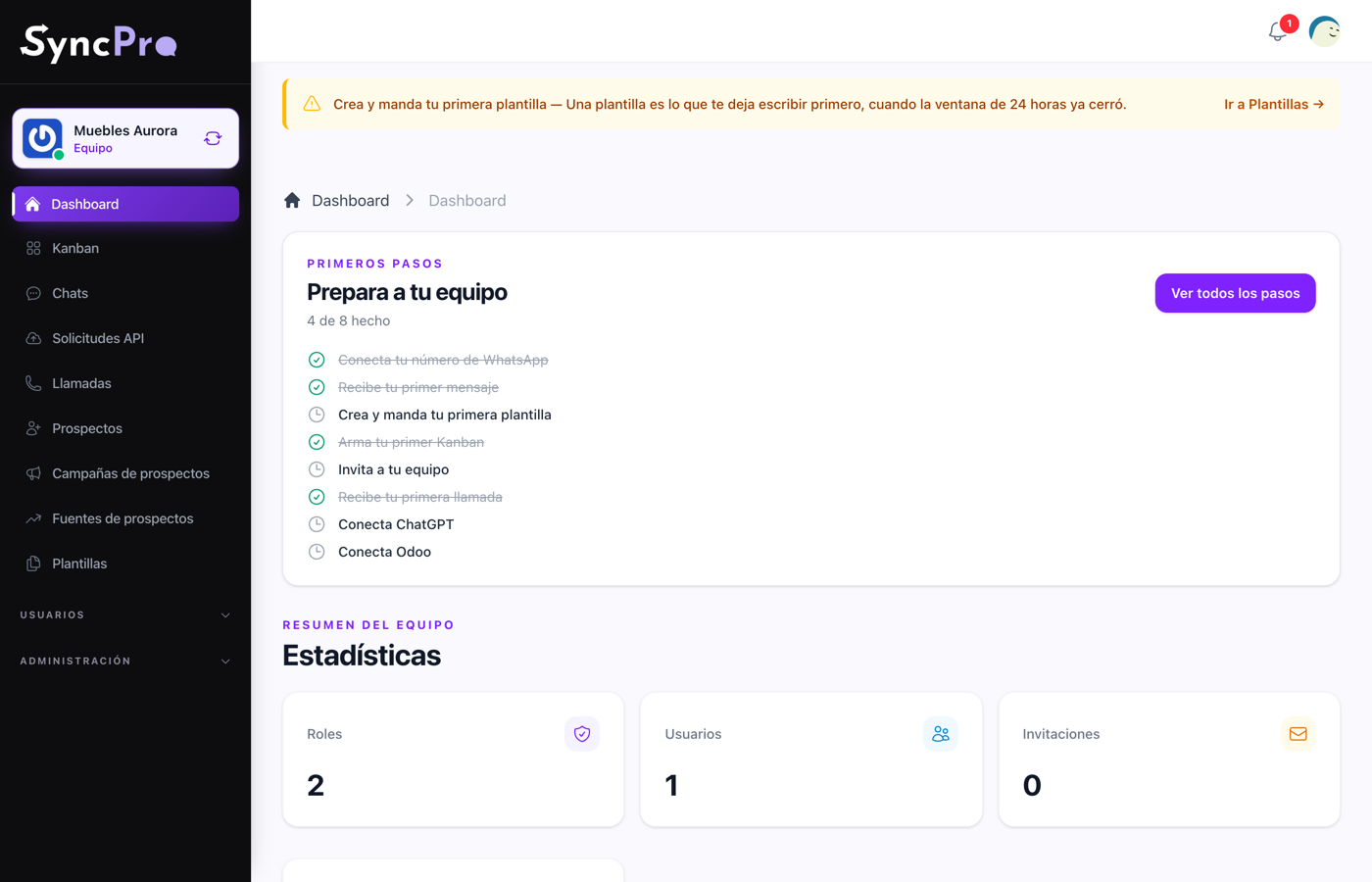
| Card | What it counts |
|---|---|
| Roles | How many roles exist in this team. A brand-new team already has two: the owner's and the default one. |
| Users | How many people belong to the team. |
| Invitations | How many invitations are still waiting to be accepted. |
If you have just created your team, these read 2, 1 and 0, and that is correct: you are the only person in it and nobody has been invited yet. They fill in as you invite people.
The first steps block
While your team still has something left to set up, the dashboard leads with your first steps and keeps the cards below. Once everything that applies to your team is done, the block disappears on its own and the dashboard goes back to the cards alone. See The first steps.
Your plan's usage
When your team works with a plan, a row of usage cards follows the stats: Users, Activity Logs, Disk Space and Contacts Served Per Month. Each card shows how much is used out of what your plan gives you, with a bar. From 80% the card warns "You have used ...% of what your plan gives you.", and at the limit it says "You reached what your plan gives you." A card your plan does not include says so instead of showing a number. See More users, contacts and space.
Press a card to see its detail: a Daily Usage chart and a Cumulative Usage chart for the dates in From and To, which start on the current month. Press the same card again to hide them.
The billable templates panel
A team whose WhatsApp number is linked gets a Billable Templates panel below the cards. If your team also has the calls module, a Templates / Calls switch above the panels picks which one you see.
WhatsApp does not charge for every template you send. It charges for the first delivered template that reopens a conversation that had gone quiet for more than 24 hours; the ones you send after it are free until the contact writes again. The panel counts only those charged templates, so the number is the one your WhatsApp bill is based on.
Pick Day, Week, Month or Year in the selector, and use the arrows to move to the previous or the next period. The counter and the chart below it follow the period you pick.
See who sent them
- Pick the period you want to look at.
- Press View detail under the chart.
- A table opens in place with one row per person who sent a billable template in that period, and how many each one sent. The busiest sender comes first.
- Press Hide detail to fold it away.
The rows always add up to the counter above: the table splits the same templates, it does not count them again. Someone who has left the team, or whose account was deleted, keeps their own row under their name, because what they sent was still charged. Templates sent automatically, with no person behind them, are grouped in one row called Automated/System. A period with nothing charged shows "No billable templates were sent in this period."
The calls panel
A team with the calls module on gets a Reports Dashboard panel. If your team does not have that module, the panel is simply not there — nothing is broken and nothing is hidden from you. See Turning modules on and off.
Its selector picks the period: Today, This Week, This Month or This Year, always the current one. It opens on This Week. Every number and chart in the panel follows it.
| Indicator | What it means |
|---|---|
| Total Calls | How many calls happened in the period. |
| Satisfaction | Of the calls with a sentiment reading, the share whose first turn of conversation was read as positive. Only that first turn counts, not the call as a whole. |
| Average Tone | The most common reading of that first turn, as Azure Language gives it: Positive, Neutral, Negative or Mixed. With no readings it says Neutral. |
| Completion Rate | The share of calls that have a summary written by ChatGPT. |
Below them, six charts break the same period down:
| Chart | What it shows |
|---|---|
| Call Trends | How many calls there were per hour, day or month of the period. |
| Calls by Type | The calls by their intent, as ChatGPT read it. Calls without one are grouped as Others. |
| Top-performing agents | The average agent score of each Callpicker agent who answered calls, using only the calls that have a score. |
| Distribution by Duration | Short (<2min), Medium (2–5min) and Long (>5min) calls. |
| Completed vs Incomplete | Calls with a ChatGPT summary against calls without one. |
| Types of People Who Call Most | The calls by intent again, as columns. Calls without one are grouped as Other. |
Satisfaction, tone, intent, the agent scores and the summaries are not opinions somebody typed in: they come from reading the transcript of each call, and a call only gets them when Assembly AI, ChatGPT and Azure Language are all connected. A call without a reading — no recording, a team without one of those modules, or a call still being processed — is left out of Satisfaction and Average Tone and counts as incomplete. See Call transcription and sentiment.
Why everything is at zero at the start
Every number here counts something that has happened. A team created today has no calls, no invitations and one member, so it reads zero almost everywhere. That is the expected picture, not a sign that something failed. The numbers start moving the day the first message and the first call arrive.