Every conversation of your business, in one place
Your WhatsApp Business number connected to an inbox the whole team shares, where everyone sees who is answering each conversation.
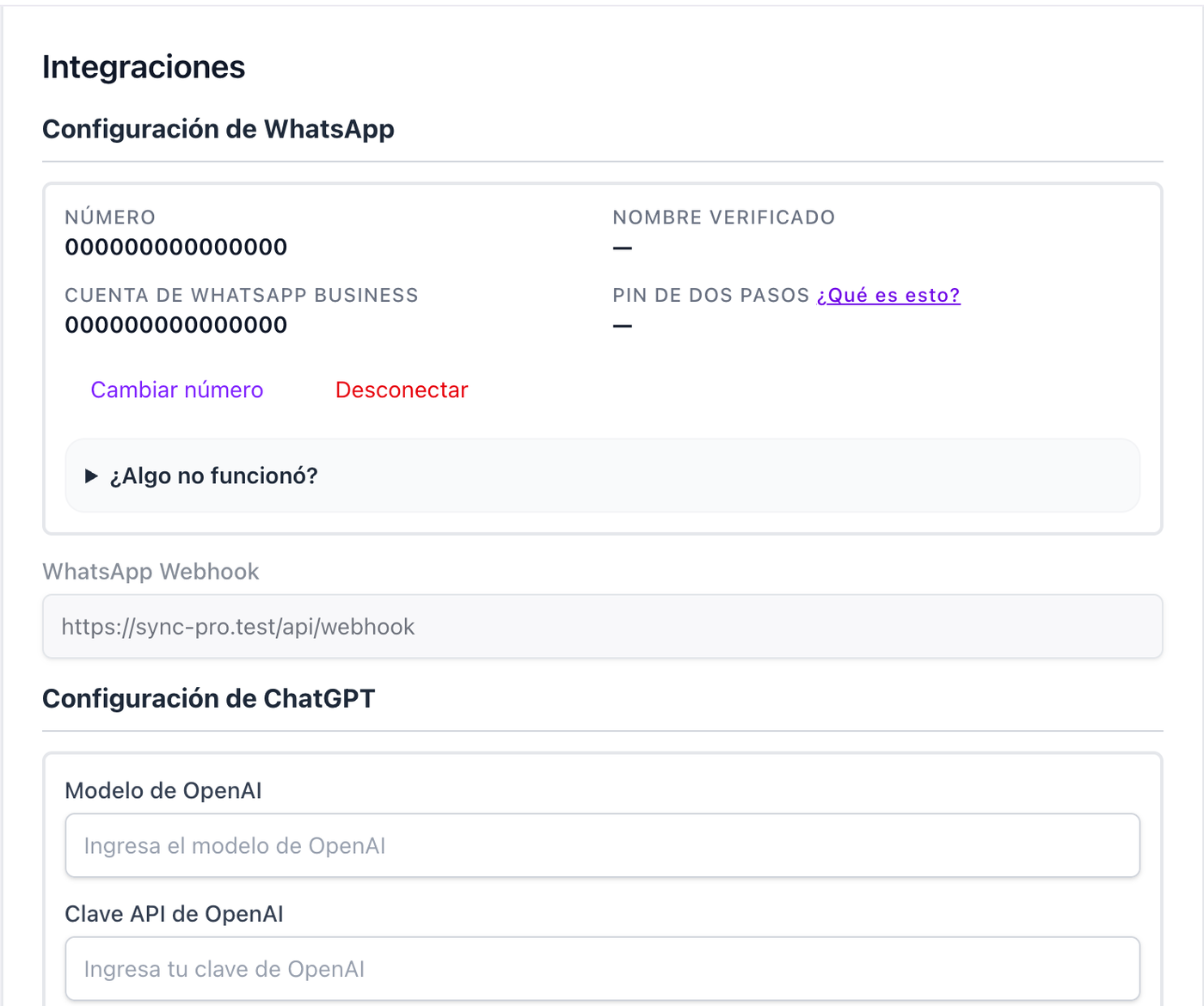
Connect your number yourself
Link your WhatsApp Business account through the guided flow from Meta and choose the number you want to send from. For numbers that cannot go through it, paste the credentials from your Business Manager instead. Each subscription connects one number. Your Meta account and your number stay yours, what Meta charges for WhatsApp is paid by you, and how you use WhatsApp, its policies and your contacts' consent are your responsibility.
How to connect the number →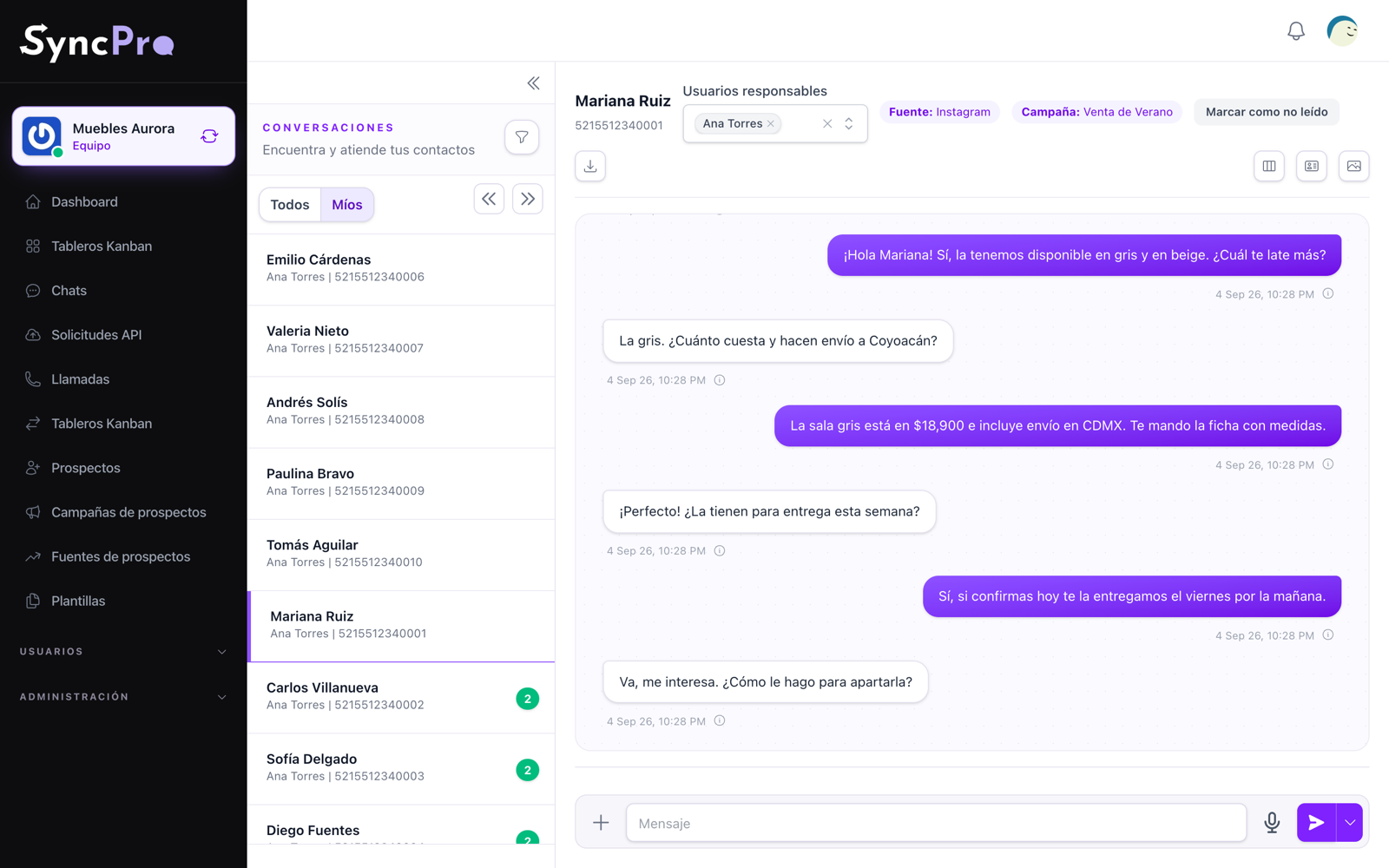
One inbox, and it is clear whose turn it is
Each conversation has the people responsible for it, so everyone knows what they have to answer and what the team is already handling. A conversation that arrives from an unknown number goes to whoever you named to receive it.
How the inbox works →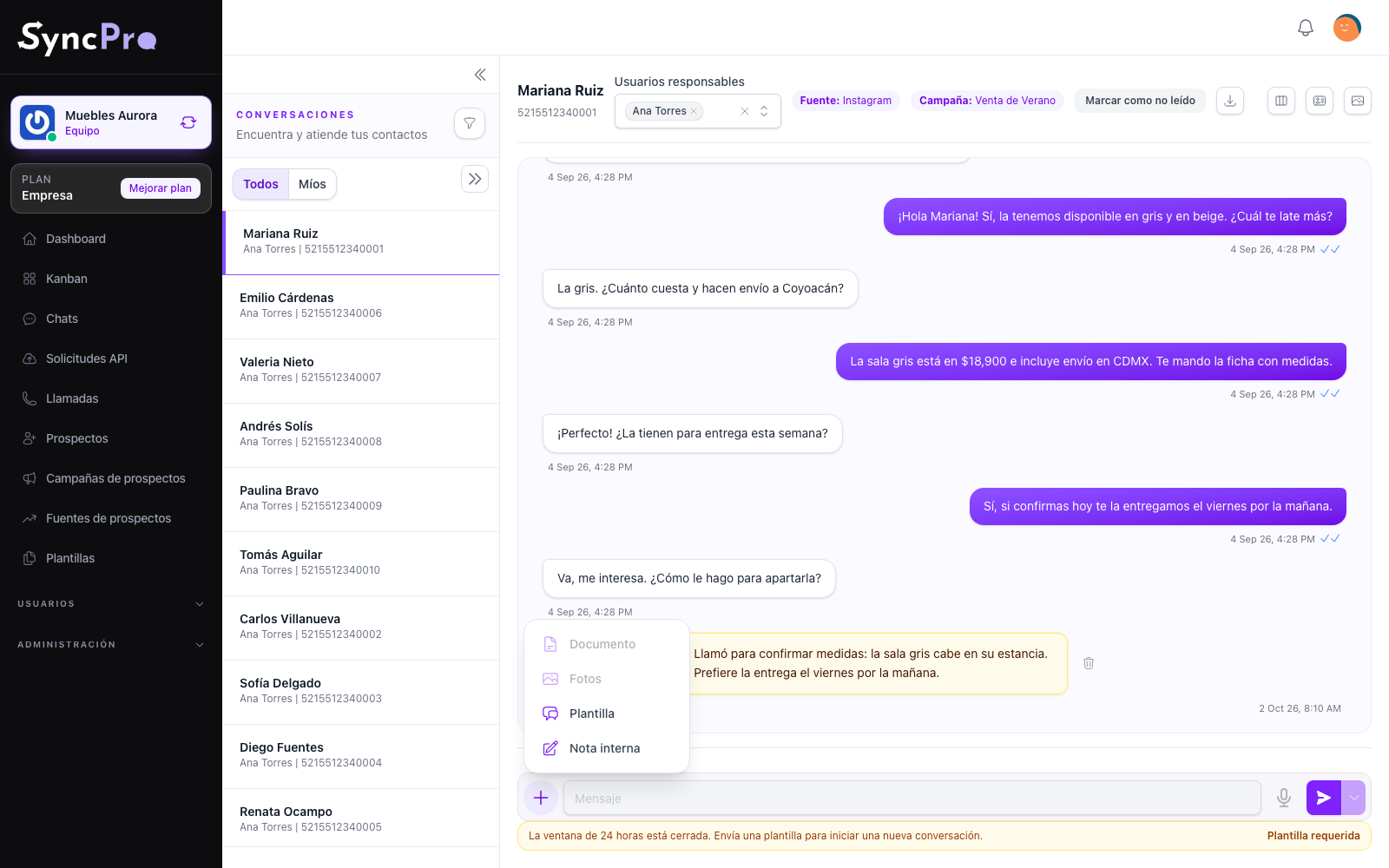
Text, photos, documents and voice notes
Answer with what the conversation needs. Record a voice note from the browser, send a quotation as a document, attach a photo with its caption, and find any of it again later in the media of the conversation.
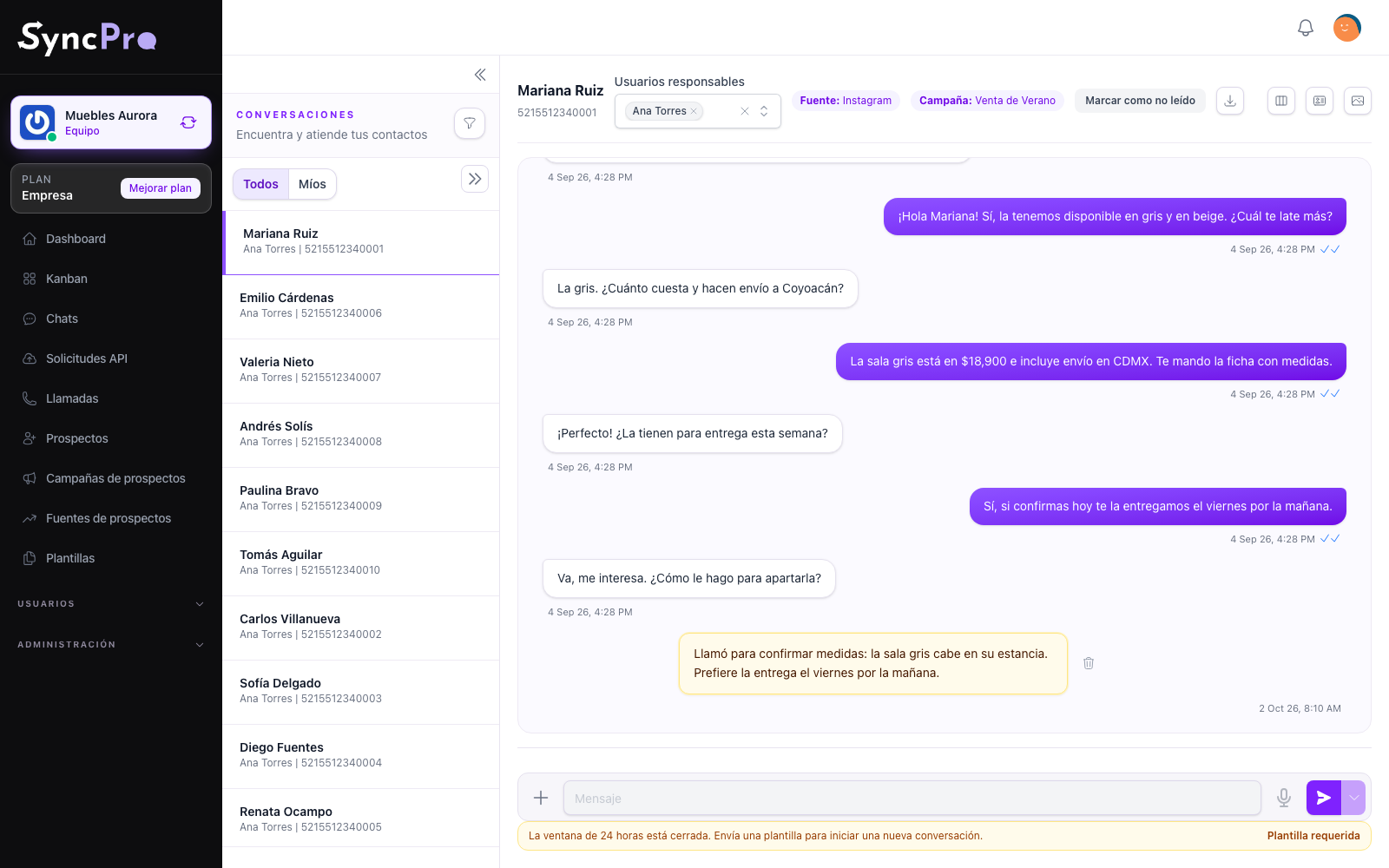
Notes only your team reads
What one person learned on a call stays with the contact, so whoever picks the conversation up next is not starting from nothing. The customer never sees them.
How internal notes work →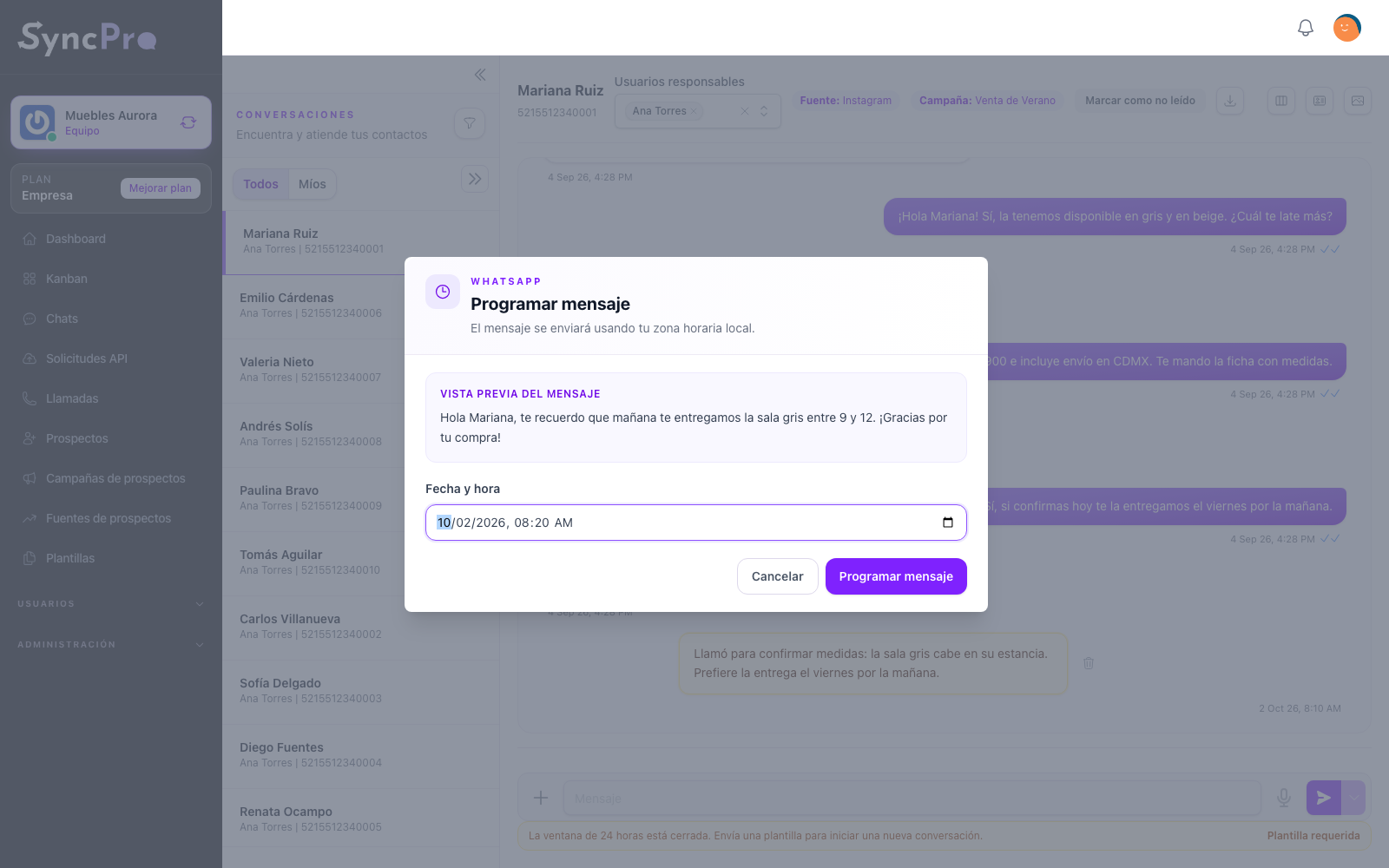
Write now, send later
A message, a photo or a document can be scheduled instead of sent, and cancelled while it is still pending. The 24-hour window WhatsApp imposes is handled with approved templates, and the inbox says when one is required.
How to schedule a message →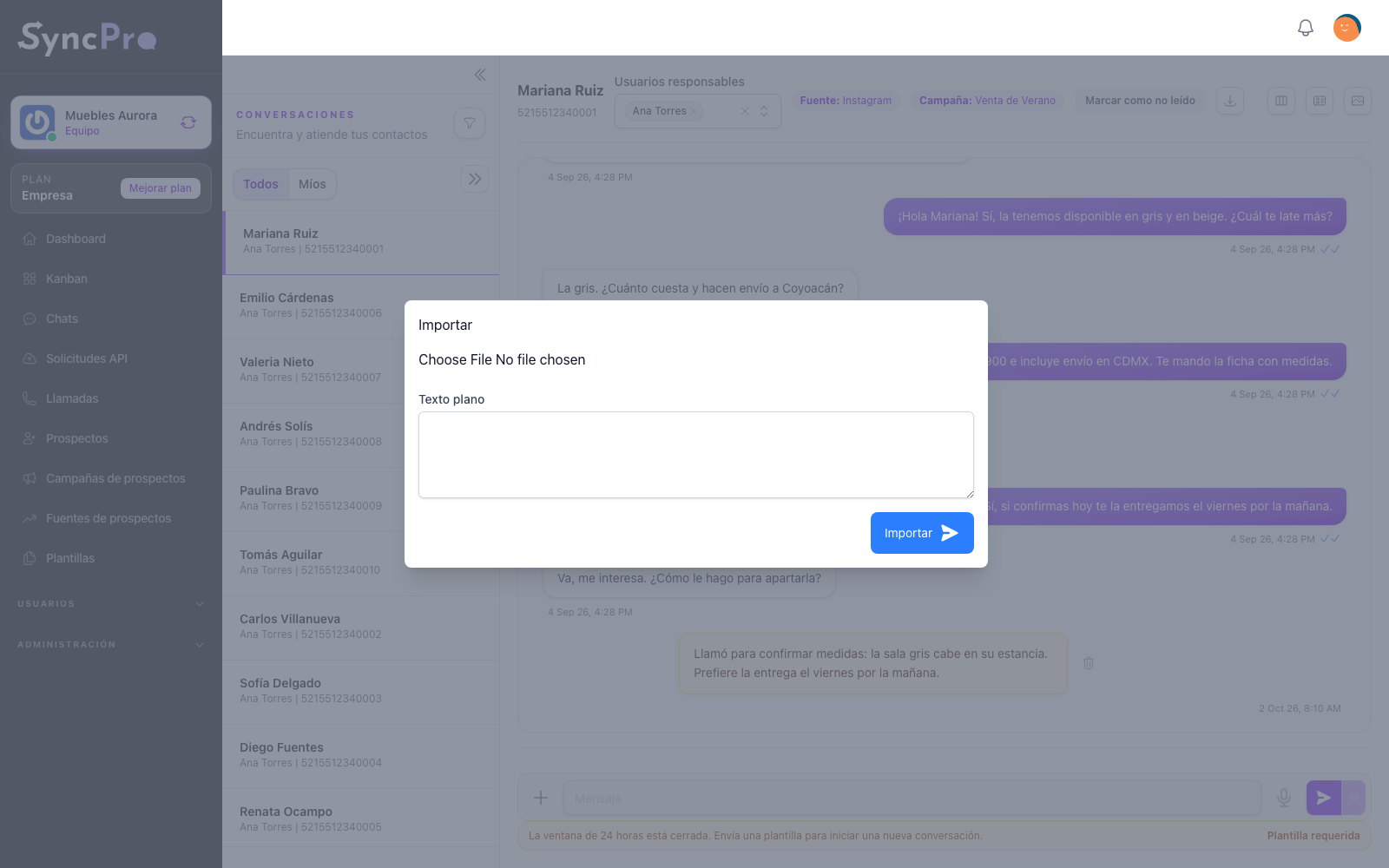
Bring the history you had on your phone
If you were answering from your phone before, export that chat from WhatsApp and upload it to the contact. The earlier messages sit in the same conversation, so the quote in progress or the long relationship is not lost when you move to Sync Pro.
How to import earlier conversations →
Know when someone writes, wherever you are
A new message reaches you in the browser even when Sync Pro is not the window you are looking at, and on your phone once you install Sync Pro there. Choose what reaches you and how, so a customer is noticed in seconds instead of in an hour.
How to get notified →Every file kept with its contact
The photos, documents and voice notes of a conversation are kept in that contact's own folder in Media, and call recordings and template files in folders of their own, so nobody has to sort them by hand. A file a contact sends is kept even when your team's space is full, because WhatsApp does not keep it for long.
Where your team's files live →