
Bring your earlier conversations
Upload the export of a WhatsApp chat from an iPhone, or paste its text, so the history you had on your phone sits inside the contact's conversation.
If you have been answering from your phone, that history does not come across on its own when you connect the number. You can bring it in one conversation at a time, from the export WhatsApp itself produces.
This is worth doing for the contacts that matter — the ones with a quote in progress or a long relationship — rather than for every chat you have.
What Sync Pro can read
Sync Pro reads the export of an iPhone. Each line of it starts with the date and time in brackets, then who wrote it, then the text:
[09/01/24, 12:17:07 p. m.] Ana López: Hi, do you have the quote?
The date goes day first and the time with a. m. or p. m., which is how a phone set to Spanish writes it. Lines written another way — an Android export, for example — are not read.
The chat has to be between you and the contact. Sync Pro tells who wrote each line by comparing the name in the export with the contact's WhatsApp number and name in Sync Pro: the one that resembles them is the contact, and the other is you.
Export the chat from WhatsApp
On the iPhone, inside the conversation with that contact, tap the contact's name at the top, scroll down, then Export chat.
It asks whether to include media. Without media is smaller and enough for the history to read; with media brings the photos and files too.
WhatsApp then offers to share the file, a .zip. Send it to yourself — by email, or to your own files — so you can reach it from the computer where you use Sync Pro.
Upload it in Sync Pro
- Open the conversation of that contact in Chats.
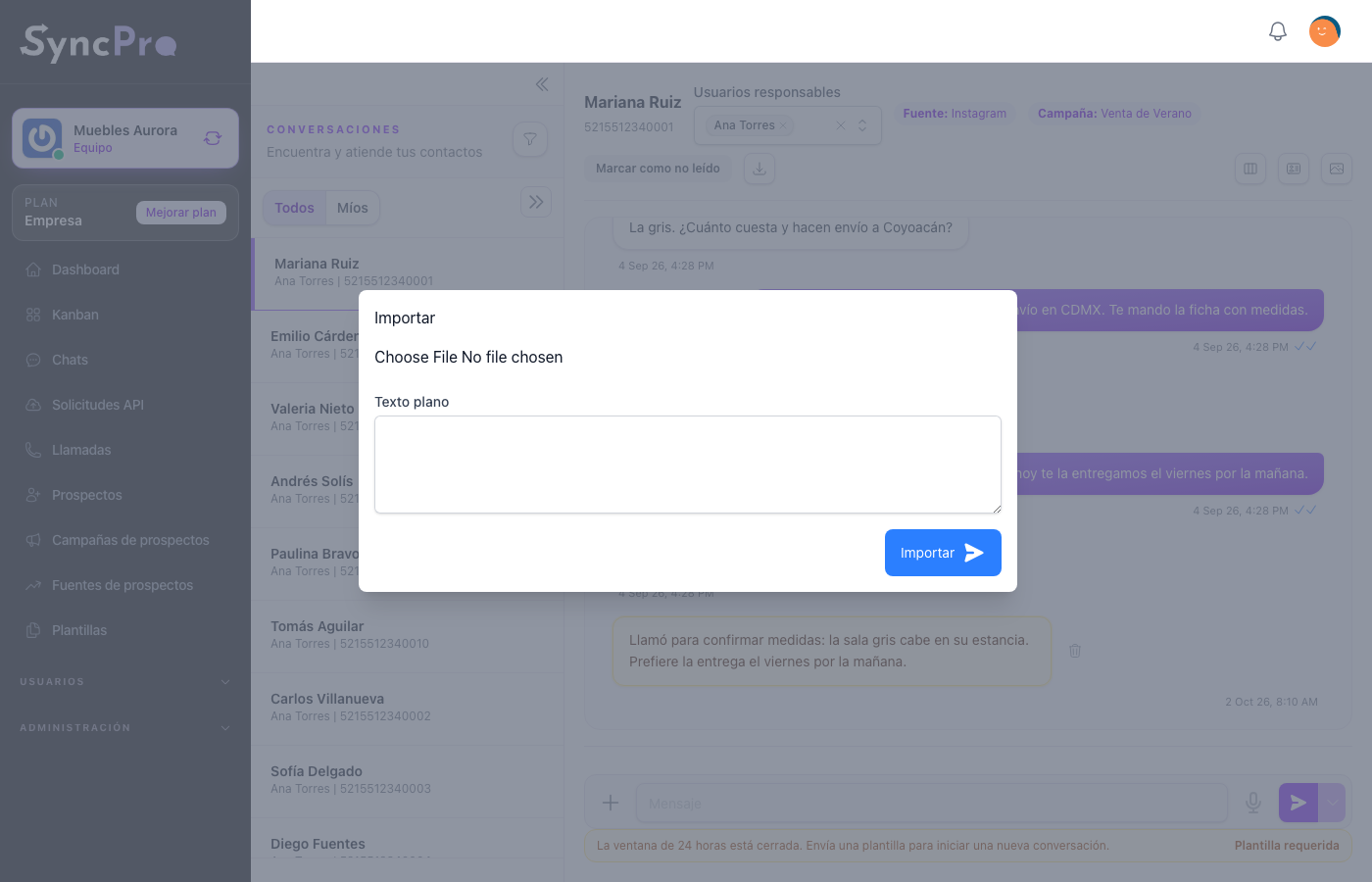
- Click Import conversation, the download icon at the top of the conversation. The Import window opens.
- Choose the
.zipyou exported, or paste the text of the chat in Plain text. If you fill both, only the pasted text is imported. - Click Import.
The .zip can weigh up to 1 MB. When yours is larger, export the chat again without media, or open the .zip, copy the text of the chat and paste it in Plain text. Pasted text brings the messages but no files.
Sync Pro places each line in the conversation with its original date, and says Messages imported correctly. The history sits above the messages that arrived through Sync Pro, in one continuous thread.
What to expect
- The dates are the original ones, so the imported messages sit in the past where they belong, not at the moment you uploaded them.
- Nothing goes to WhatsApp. Importing sends nothing to the contact.
- Your team is notified as if they had just arrived. Each message of the contact in the history reaches the people responsible for the conversation as a new-message notice.
- The 24-hour window can close. After the import, the date of the last message the contact sent in the history counts as their last message. If it is older than 24 hours, the box shows Template required until the contact writes again, even if they had written to you through Sync Pro a moment before.
- Your imported messages show a tick that means nothing. They were never sent through Sync Pro, so no confirmation ever arrives: the ones dated before 30 July 2026 show one grey tick, and later ones a clock. See Chats and conversations.
- Photos and files come in as history too. Each file the export brought is kept in the conversation, from whoever sent it and on the date of the message that mentions it, and it counts against your team's space. A file no message of the chat mentions is left out, and Sync Pro tells you how many. If your team does not have room for all of them, nothing is imported and you are told Not saved: your team ran out of space.
- Importing again does not repeat the text. A message with the same text, sender and date is not written twice. The files are: each import adds them again, and they use space again.
If it does not work
| What you see | What it means |
|---|---|
| Unable to determine which messages belong to the lead. | Sync Pro could not tell the contact from you. Check that the contact's name in Sync Pro resembles the name in the export, and that only the two of you wrote in the chat. Nothing is imported. |
| The ZIP file must not be larger than 1 MB. | Export without media, or paste the text in Plain text. |
The file has to be the .zip WhatsApp produces on the iPhone. A screenshot, a PDF or a file you retyped will not be read.