
How to get notified — email, browser and phone
Which notice reaches you where, the two switches in your profile, how to switch on push alerts in your browser, and how to install Sync Pro on your phone so it behaves like an app.
A conversation you do not notice is a customer waiting. Sync Pro can reach you three ways: the bell inside the application, email, and push alerts in your browser or on your phone. This guide covers which notice uses which of them, and how to switch each one on.
Your two switches
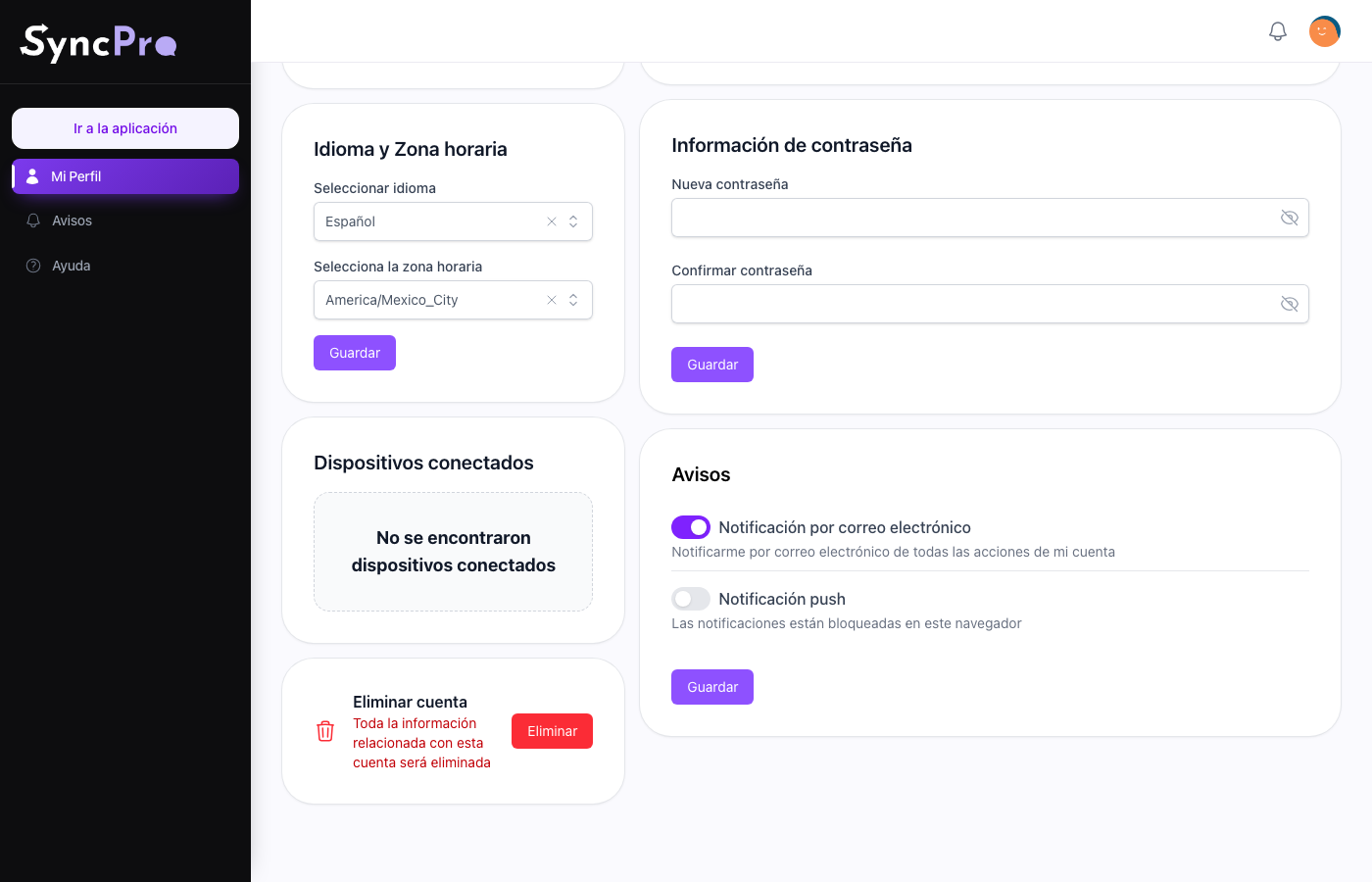
Open My Profile from your photo at the top right. The Notifications block has two switches:
- Email notification — whether the notices that can go by email reach your inbox. Change it and press Save.
- Push notification — whether this browser shows push alerts. It takes effect as soon as you flip it, without Save. It only appears when your Sync Pro offers push alerts; if you do not see it, they are not available.
There is no switch per kind of notice. Each notice has its own channels, listed below, and these two switches only turn email and push on or off.
The bell at the top right is always on and needs nothing set up. It collects what happened while you were elsewhere.
Which notice reaches you where
| Notice | Bell | Push | |
|---|---|---|---|
| A lead was assigned to you | No | Yes, even with Email notification off | No |
| A new message from a lead you are responsible for | Yes | No | Yes, if push is on |
| The unread messages summary | No | Yes, only with Email notification on | No |
| A WhatsApp template was approved, rejected, paused, disabled or deleted | Yes | No | No |
| The result of syncing names with Odoo | Yes | No | No |
| A team data import finished or failed | Yes | No | No |
| You were added to a team, or removed from one | Yes | Yes, with Email notification on | Yes, if push is on |
Some details worth knowing:
- A lead assigned to you reaches every new responsible except the person who made the assignment. Contacts brought in with a team data import do not send it.
- A new message reaches every person responsible for that lead. Messages brought in with a team data import do not send it.
- A template's status reaches every member of the team.
- The Odoo result reaches the person who pressed Sync names.
- A team data import tells the person who started it.
Your email does not have to be confirmed for these emails to be sent. If they do not arrive, check the address in your profile and your spam folder.
Which team a notice is from
If you belong to more than one team, the notices about a team's work say which team they come from. The team's name opens the title, followed by a dot, and the text names it again:
- a lead assigned to you — Sales · A new lead was assigned to you: Ana López
- a new message from a lead — Sales · Ana López: Hi, is it available?
- a WhatsApp template approved, rejected, paused, disabled or deleted
- the result of syncing names with Odoo
- the unread messages summary — Sales · Unread messages in your chats
Wherever one of these notices reaches you, it carries that title. The other notices — being added to a team or removed from one, the result of a team data import — do not open with the team's name.
The unread messages summary
When a lead writes to you and the message goes unread for more than an hour, Sync Pro emails you how many of your chats are waiting — every chat with a message you have not read for more than an hour, not only the newest one. You get one email per team, and only for the leads you are responsible for.
Sync Pro checks once an hour, and each check looks at one clock hour: the 10:00 check emails you if a message arrived between 8:00 and 8:59 that you have not read. If nothing new arrived in that hour, no email is sent, even when older chats are still waiting, so the same message never sends you two emails.
It arrives by email only, and only while Email notification is on in your profile.
Push alerts in your browser
These are the small pop-ups your computer shows even when Sync Pro is not the window you are looking at. They are the difference between noticing a message in ten seconds and noticing it in an hour.
Push is switched on per browser. Do this in every browser and phone where you want alerts:
- Open My Profile and turn on Push notification.
- Your browser asks for permission. Allow it.
- The line under the switch says Push notifications are enabled in this browser. Press Test to send yourself a test alert: it says Notifications are working.
The line under the switch tells you when something is in the way:
- Notifications are blocked in this browser — you said "block" once, and the browser will not ask again. Allow it in the browser itself: in Chrome, the small icon at the left of the address bar opens the site's permissions, and notifications can be switched back to Allow there. Then turn the switch on again.
- This browser does not support push notifications — use another browser.
- Open this site with HTTPS to enable push notifications — the address you opened is not a secure one.
Alerts only arrive while the browser is running. If you close it completely, nothing arrives until you open it again — which is what the phone is for.
Sync Pro on your phone
Sync Pro installs on a phone as an application, with its own icon on the home screen and its own window without the browser's address bar. There is nothing to download from a store.
On Android, in Chrome: open Sync Pro, then the three-dot menu, then Install application (some versions say Add to home screen).
On iPhone, in Safari: open Sync Pro, tap the share button — the square with the arrow — then Add to home screen. It has to be Safari; the other browsers on iPhone do not offer it.
Once installed it opens straight into your team and keeps you signed in, so it behaves like any other app on the phone. To get alerts on the phone, open My Profile inside the installed app and turn on Push notification there, as above.
One thing to know about the iPhone: it only lets an installed web application send alerts after you have added it to the home screen, so install it first and then turn the alerts on from inside it.