
Turning modules on and off
WhatsApp has no switch — linking your number is what turns it on; your team switches the rest on and off from Add-ons, and what changes when one goes off.
Sync Pro is built out of modules, and a module that is off takes its screens out of the menu and its section out of the settings. WhatsApp is the exception: it has no switch at all.
WhatsApp follows your number
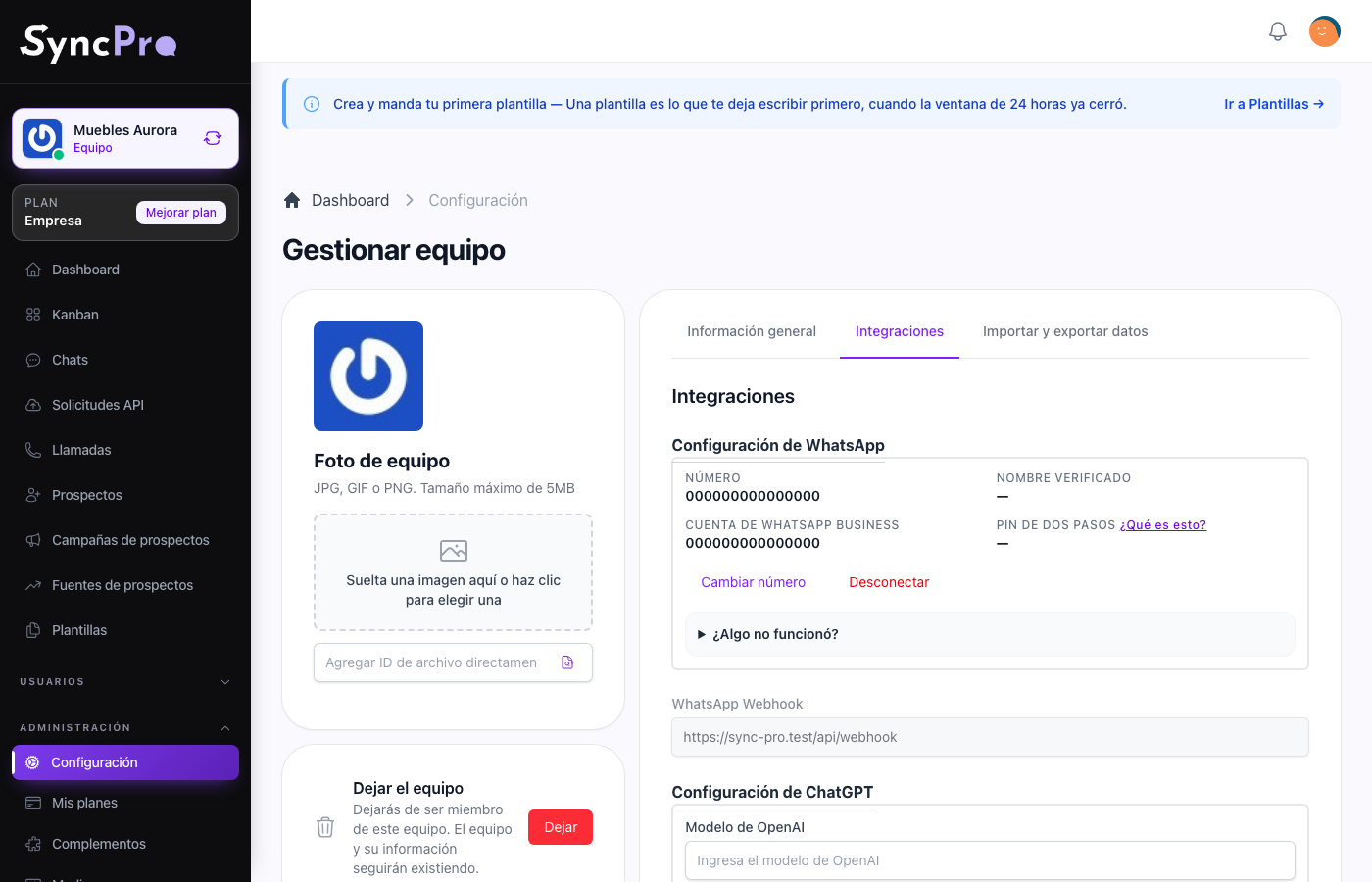
There is nothing to turn on and nothing to ask for. The WhatsApp Configuration section is always in Settings → Integrations, for every team, and linking your number there is what turns WhatsApp on. See The WhatsApp module.
| While your number is linked | While it is not |
|---|---|
| Chats and Kanban are in the menu. | Chats and Kanban are not in the menu. |
| Templates can be created, imported and sent. | Templates cannot be used. |
| Messages to your number arrive as leads. | Nothing arrives, and nobody is notified. |
| The WhatsApp first steps are in the list. | Only Connect your WhatsApp number is in the first steps. |
Disconnect in the same section is how a team stops using WhatsApp. It does not delete anything: your conversations, contacts, templates and boards stay where they are, and linking a number again brings the screens back with everything in them. See What Sync Pro can and cannot see.
A number can be linked to one team only. If it is already linked to another team, Sync Pro says so and does not link it: disconnect it from the other team first, or choose a different number.
The other modules
Every other module — Advanced Leads, Callpicker, ChatGPT, Odoo, Assembly AI, Azure Language, Token access and MCP — is a free add-on your team switches on and off itself. Someone whose role has Manage Plans opens Add-ons from the menu, finds the module and presses Activate; Deactivate, in the same place, switches it off. None of them costs anything, and every plan can switch them on. Whoever administers your Sync Pro can also give one to your team, for good or as a trial, and a plan can include one: MCP comes with the Company and Enterprise plans. A module given for good shows as Owned, and one your plan includes as Included; neither can be switched off from Add-ons.
From inside the team you see the result as soon as a module is on:
| Module | What appears | Guide |
|---|---|---|
| Advanced Leads | The Source and Campaign of each lead, and Lead Sources and Lead Campaigns in the menu. | Leads, sources and campaigns |
| Callpicker | Its section in Settings → Integrations, its first step, and the calls panel on your dashboard. | The Callpicker module |
| ChatGPT | Its section in Settings → Integrations and its first step. | The ChatGPT module |
| Odoo | Its section in Settings → Integrations and its first step. | The Odoo module |
| Assembly AI | Its section in Settings → Integrations. | The Assembly AI module |
| Azure Language | Its section in Settings → Integrations. | The Azure Language module |
| Token access | A Token access block inside the WhatsApp section. | The Token access module |
| MCP | The tokens for your AI client. | Connect your AI client with MCP |
Switching a module off takes those away again and never deletes anything: your calls, sources, campaigns, keys and connections stay where they are, and switching it back on brings them back as they were.
If a module you expect is missing from Add-ons, that is the thing to ask for. If it is on and nothing happens, it is configured wrongly, and each module's guide says exactly which fields it needs.
When nothing is on
With no number linked and no other module switched on, the first steps ask for one thing only: Connect your WhatsApp number. The WhatsApp section is still in Settings → Integrations, ready for you to link your number.