
The Callpicker module
Point Callpicker at the webhook and every call arrives as a record, matched to a contact, with its recording attached.
The Callpicker module brings phone calls into the same place as the conversations. A call finishes, Callpicker tells Sync Pro, and a call record appears against the contact who was on the line.
Turning it on and off
The Callpicker module is free, and your team switches it on itself. Someone whose role has Manage Plans opens Add-ons from the menu, finds Callpicker and presses Activate; Deactivate, in the same place, switches it off. Whoever administers your Sync Pro can also give it to your team, for good or as a trial, and a plan can include it.
Switching it off removes the Callpicker Configuration section and the calls panel from your dashboard, and the calls Callpicker sends wait in the log instead of being recorded, as explained below. Nothing is deleted: the calls already recorded stay on their leads, and switching it on again brings everything back.
Connecting it
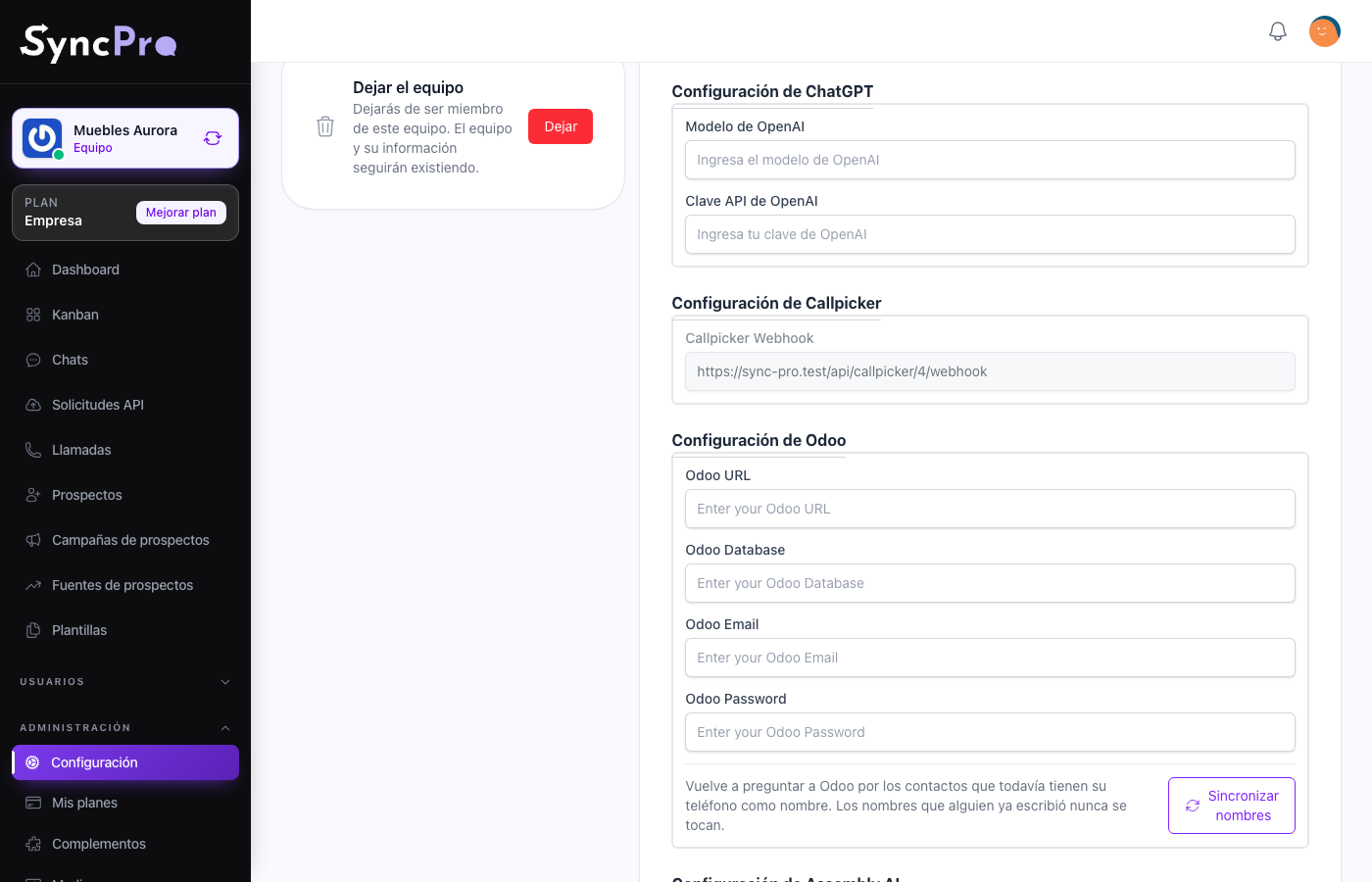
Settings → Integrations gains a Callpicker Configuration section when the module is on. It holds one read-only field, Callpicker Webhook: the webhook URL, which carries your team's id. Every member can open Settings, but only someone whose role has the Edit Settings permission sees the content of Integrations.
Copy that URL into Callpicker as the webhook for call events. There is nothing else to fill in on the Sync Pro side — the id in the URL is what tells Sync Pro which team a call belongs to.
Because the team id is in the address, do not reuse another team's webhook URL. Calls would land in the wrong workspace.
If the Callpicker module is off for your team, the calls Callpicker sends to that address are kept in the API requests log with the error Call Picker is not enabled for the team, and no call is recorded. Once you switch the module on, open each one and press Rerun to record it. The same goes for a call whose recording failed: it stays in the log with its error until you run it again.
What happens when a call arrives
- The recording is downloaded and stored in the call's folder, inside the team's Calls folder, in Media. When Callpicker sends more than one recording for a call, only the first one is kept. If the download fails, the call is saved without a recording.
- The number is matched against the team's contacts, on the WhatsApp phone or the alternative phone.
- If no contact matches, one is created for the number so the call is never orphaned. That contact gets nobody responsible and nobody is told about it: a call is a record of what happened, not a conversation somebody has to answer.
- The call is saved with its duration, its recording, the date, and whether it was inbound or outbound.
Calls are in Calls in the workspace, and each one is tied to the contact it belongs to, so a lead's history holds what was said on WhatsApp and what was said on the phone. The contact's conversation in Chats shows each call between the messages, at the moment it happened — see Chats and conversations.
If Callpicker sends the same call twice, what happens depends on Assembly AI: with it connected, the call is not created again; without it, the call appears twice.
Recordings use the team's space. When the team has run out of space, Sync Pro keeps no copy of the recording: the call is still recorded, it is still transcribed, and its recording plays from Callpicker for as long as Callpicker keeps it. See Your team's files and space.
Outbound calls and voicemail
For an outbound call, the number recorded is the one dialled. A short outbound call — under forty seconds — is stored with a duration of zero, on the assumption it reached voicemail rather than a person. It is still transcribed and analysed like any other call when those modules are connected, and the dashboard counts it among the short calls.
What it combines with
- With Odoo on, an unknown caller is looked up in your Odoo customers, so the contact is created with their real name instead of a bare number.
- With Assembly AI on, the recording is transcribed; with ChatGPT and Azure Language on as well, it is also analysed and summarised.
Neither is required. Callpicker on its own records the calls.
Who follows up a call
A contact created by a call is not given to your team's Default responsible users and does not use up anyone's turn, even when your team also has WhatsApp, and even when its name comes from Odoo. It shows as Unassigned. If someone should follow it up, give it Responsible users from its conversation in Chats, or for many contacts at once with the Assigned To column; see Bring your contacts, and take them with you.
A call from a number that already has a contact is added to that contact, which keeps the people it already had.