
Leads, sources and campaigns
The contact record behind every conversation, how a lead is created, and the sources and campaigns the Advanced Leads module adds to say where each one came from.
A lead is the contact: the phone number, the name, the details the team filled in, and everything said to them. Every conversation in Chats is a lead, and every card on a board is a lead.
Leads in the workspace is the list of all of them, which is where you go to search, filter and open one without hunting through the inbox.
What a lead holds
Beyond the WhatsApp number, a lead carries the contact details the team fills in — name, email, business name, an alternative phone — and the people responsible for it.
The lead's page in Leads and its conversation are two views of the same person, but they are not linked both ways:
- From the lead's page, Go To Chat opens its conversation. It is there once the team's WhatsApp number is linked.
- From the conversation, you reach the lead's details through the Contact details panel and fix them with Edit contact. The conversation does not open the lead's page. See Chats and conversations.
How a lead is created
A lead appears on its own the first time an unknown number writes to the connected WhatsApp number. Nobody has to create it.
You can also create one by hand in Leads. The WhatsApp number goes with its country code, from 11 to 14 digits, and it is refused when the team already has a lead whose number ends in the same ten digits. Responsible users is required: it starts with you, and you can choose anyone in your team.
To bring a whole list at once, see Bring your contacts, and take them with you.
The Advanced Leads module
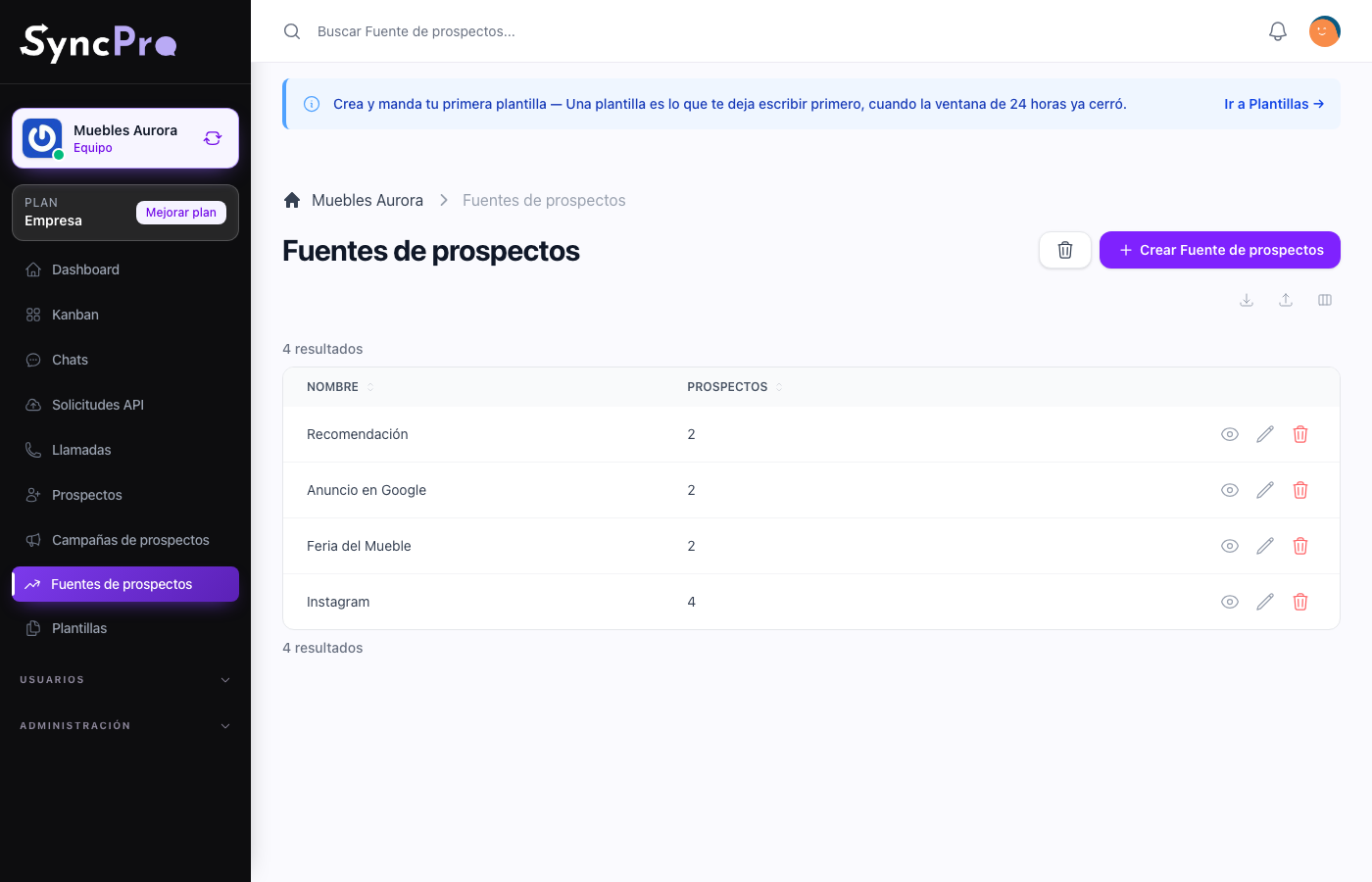
With the Advanced Leads module on, a lead gains two more fields, Source and Campaign, and the workspace gains two lists: Lead Sources and Lead Campaigns.
| Concept | What it answers |
|---|---|
| Source | Where the contact came from. A channel: a form, a referral, a paid ad, a trade show. |
| Campaign | Which specific effort brought them. A campaign belongs to a moment, not to a channel. |
Both are lists the team writes itself, so name them the way the team already talks. Each campaign belongs to a source: when you create one in Lead Campaigns, you choose its Lead Source. Both lists show how many leads each source and each campaign has.
The value is in reading them later: how many leads a campaign brought, and which source turns into conversations that go anywhere.
With the module off, leads still work — they simply do not record where they came from, and the two lists are not in the menu.
Assigning the source and the campaign
They are set on the lead's form in Leads, when you create it or edit it. Choose the Source first: Campaign only offers the campaigns of that source. The natural moment is when the conversation starts and you know why the person wrote.
Edit contact, in the conversation, does not change them.
Where you see them
- In the conversation — at the top of it, and in the Contact details panel, when the lead has them.
- On the lead's page in Leads.
- In the list of leads — the Source and Campaign filters keep only the leads of one source or one campaign. Empty finds the leads that have none.
- In the By Sources view of Leads, which lists each lead with its source and its campaign.
Who answers a lead
Responsible users are set from the conversation, in the Responsible users selector at its top. A lead that writes for the first time gets the team's Default responsible users. See Set up your team.